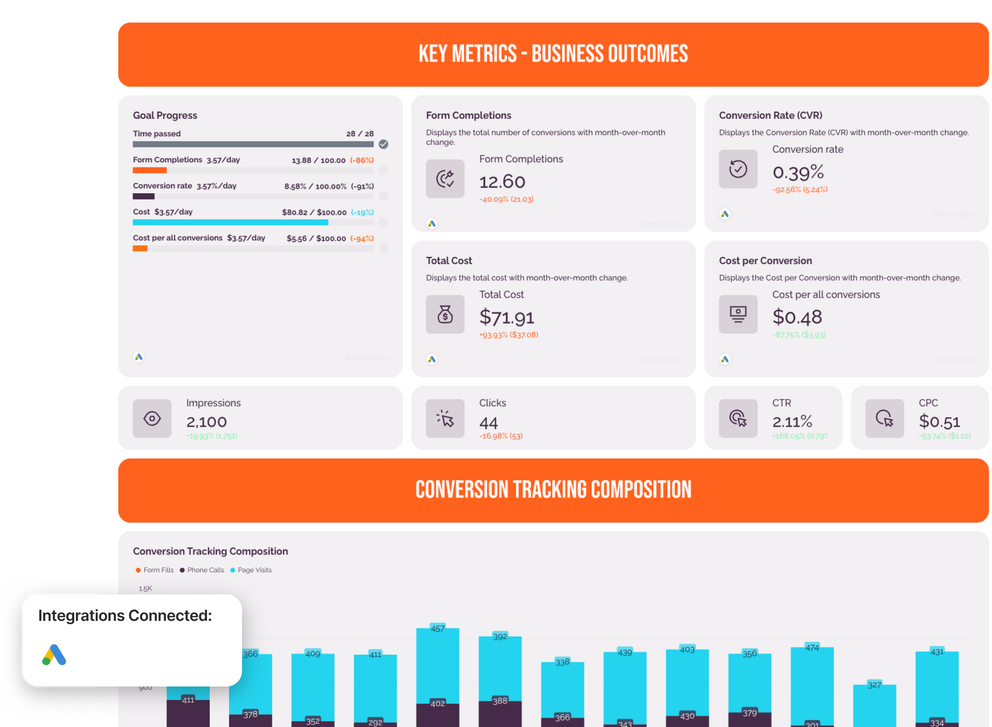

Free Google Ads Report Template

Stop wrestling with spreadsheets and broken connectors.

Grab a ready-to-go Google Ads report template that pulls in all your key metrics, visualizes campaign performance, and gives you actionable insights—without any technical setup.

Whatagraph marketing reporting tool

How to Use Whatagraph's Google Ads Report Template

Get Custom Google Ads Reports in Seconds

With Whatagraph IQ, just tell us what you need, and we'll build a stunning Google Ads report for you. No templates or manual setup needed.

What is a Google Ads report template?

A Google Ads report template is a pre-built layout that pulls your campaign data into one structured, visual format - so you can track performance, spot what's working, and share clear results with clients or stakeholders.

For most agency teams, Google Ads reporting still looks like this:

Log into the Google Ads account

Export a CSV

Paste it into a spreadsheet or Google Sheets

Manually format the metrics and write a summary

Repeat that process for every single client, every single reporting cycle

This process is slow, it's error-prone, and it eats hours that should go toward actual campaign optimization.

A well-built Google Ads report template gives agencies a repeatable way to:

  • Track key Google Ads metrics like CPC, CTR, conversion rate, ROAS, and ad spend in one place
  • Break down campaign performance by ad group, keyword, and landing page to see exactly where results come from
  • Visualize trends over any date range without manually pulling Google Ads data every time
  • Show clients the full picture - not just numbers, but what those numbers mean for their goals
  • Share results through live dashboards, scheduled emails, or white-label PDFs

Most Google Ads reporting tools still make you do this manually - widget by widget, export by export.

Whatagraph IQ builds the full report for you, brands it to match your client, and writes the performance summaries automatically from your actual campaign data.

The hours saved are real. Maatwerk Online, one of the Netherlands' most established digital agencies, used to manage reporting across 100+ clients with a fragile stack of Supermetrics and Looker Studio. Dashboards were slow to load, connections broke without warning, and reports were bloated with metrics no one was using.

After switching to Whatagraph, they’re now saving 100+ hours every single month on reporting. In Lars Maat's words, Co-Founder at Maatwerk Online:

Whatagraph's AI saves time and energy for our marketing specialists. And the hours we're saving are just pure profit. We now have the time to focus on more strategic things that help both our agency and our clients grow.

What should be included in a Google Ads report template?

If you're building Google Ads reports for clients, your template needs to do more than surface metrics.

It needs to answer the question every client actually asks: Is my money delivering results?

We talked to Ameet Khabra, Founder of Hop Skip Media, and she breaks down the sections on a Google Ads client report template she has built on Whatagraph. Her take:

Most standard PPC report templates show traffic and cost data. This template is built around a different question: did the account generate qualified leads, at an acceptable cost, and can we trust the numbers? Those three things - results, efficiency, and data integrity - are what lead generation clients actually care about.

Here's how Ameet structures the template, section by section.

1. Key metrics: business outcomes and media health
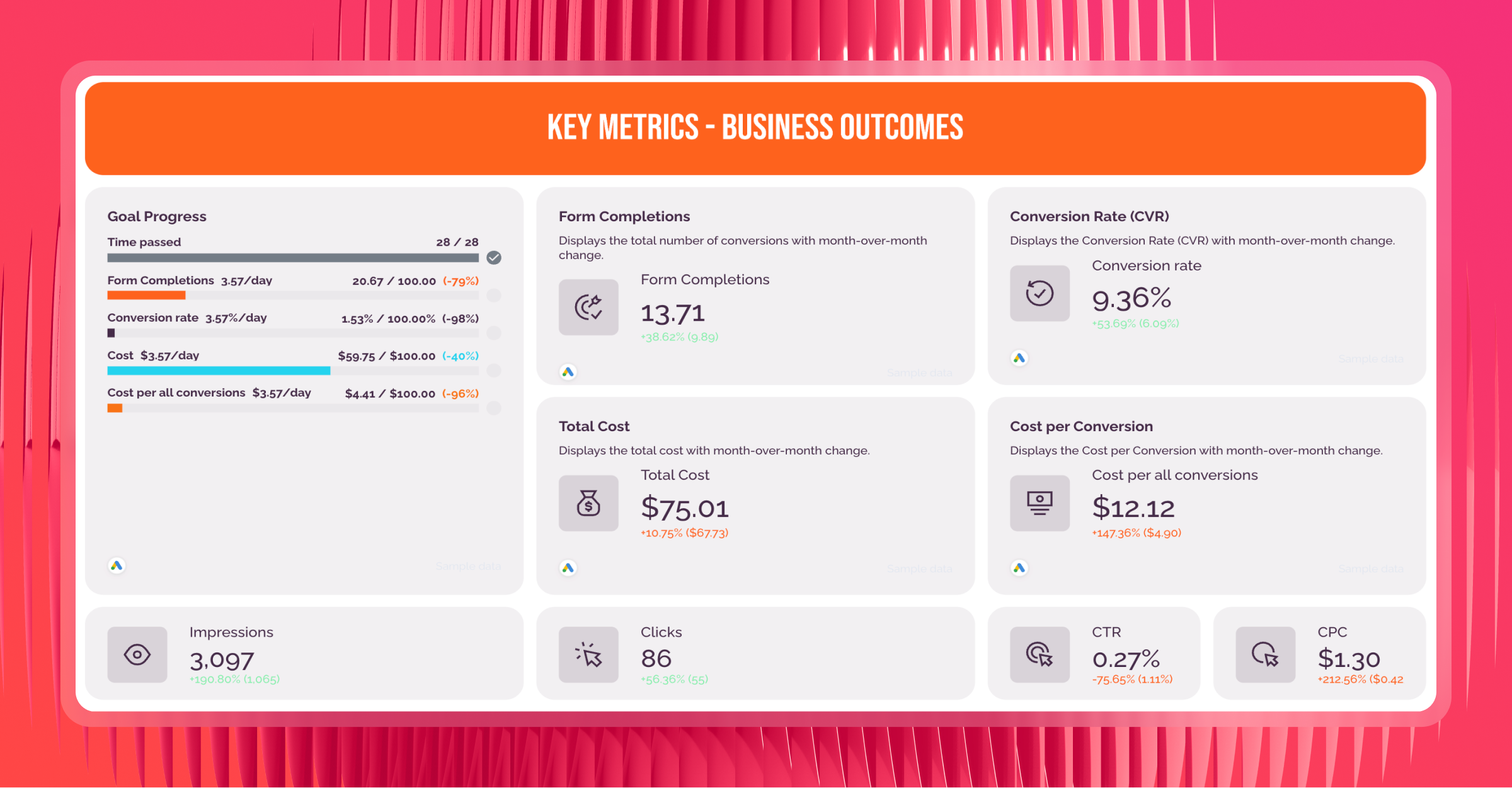
Key Metrics - Dashboard view of digital marketing metrics and progress against goals.

The first thing a client sees when they open a report should immediately answer whether the campaigns are delivering results. Ameet splits this into two visual layers.

Business outcomes (shown first):

  • Conversions - the total number of leads generated, displayed with month-over-month change and target tracking
  • Conversion rate (CVR) - the percentage of clicks that turned into leads, so clients understand efficiency, not just volume
  • Cost per conversion - how much each lead cost, which is what most clients actually care about
  • Total cost - total ad spend for the period

Media health (shown after outcomes):

  • Impressions - how many times ads were shown
  • Clicks - how many people clicked through
  • CTR - the ratio of clicks to impressions, useful for gauging ad relevance
  • CPC - the average cost per click, a key signal for budget efficiency

Why separate them? Ameet is deliberate about this structure. Presenting delivery mechanics like CTR and CPC at the same visual weight as conversions causes clients to treat traffic as a success metric. Business outcomes come first.

Add a goal widget to show progress toward agreed targets - clicks, conversions, cost, or ROAS - for each client or campaign.

With Whatagraph IQ Summaries, you can also auto-generate performance summaries in 18 languages directly from your report data. No copying data into ChatGPT, no hallucinations - the AI reads the actual data sources in your report.

2. Conversion tracking composition
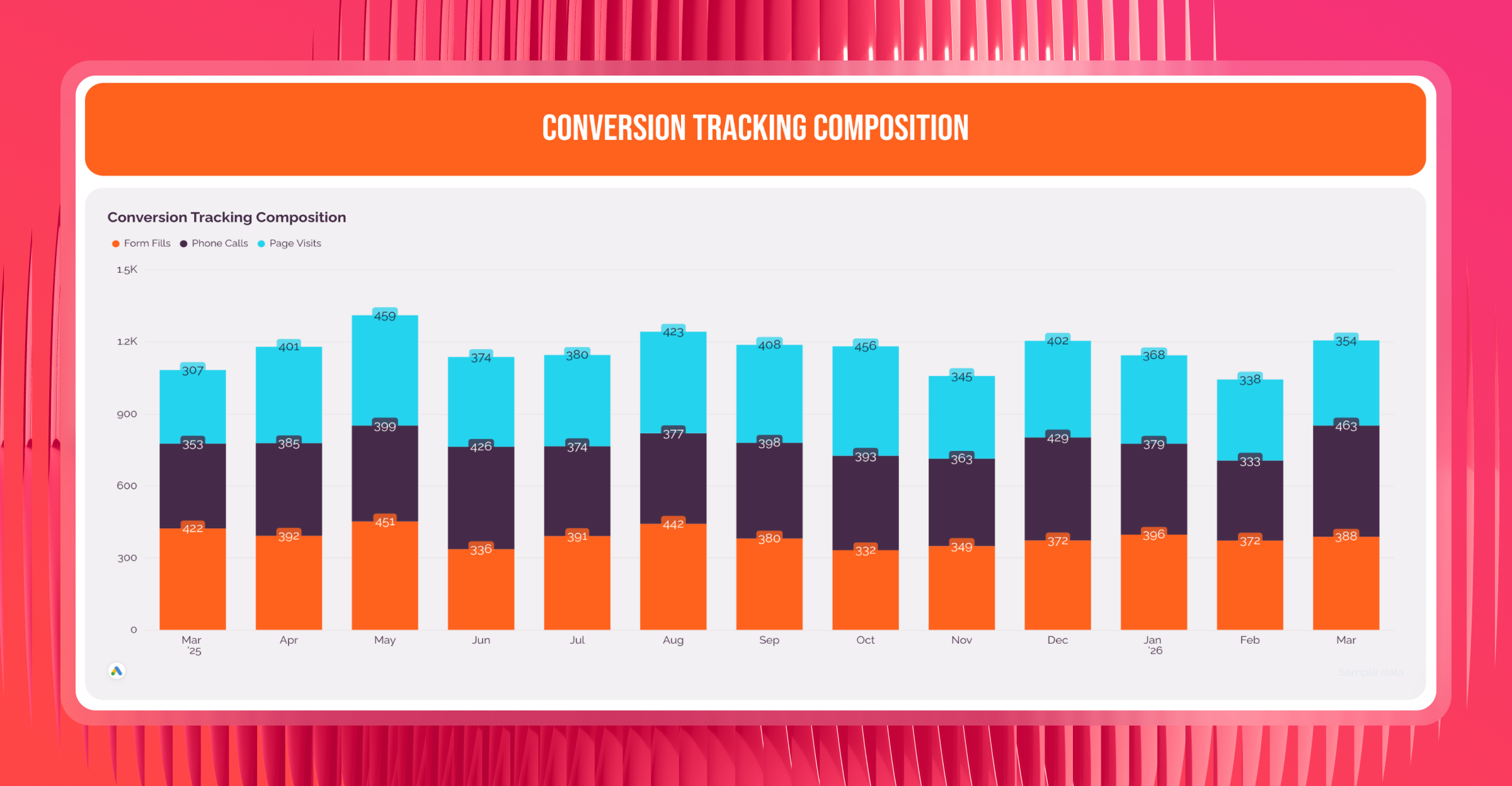
Conversion Tracking - Stacked bar chart showing form fills, phone calls, and page visits over time.

This section uses a stacked bar chart showing which conversion actions made up the total conversion count each month over the last 13 months:

  • Form fills
  • Phone calls
  • Page visits
  • Any other tracked conversion actions in the account

Google Ads conversion tracking is not standardized. Actions can be added, removed, or quietly changed without any notification.

A drop in conversions could mean performance declined - or it could mean a tracking action was simply turned off. Making those changes visible before analysis begins stops clients from drawing the wrong conclusion.

This is one of the most overlooked sections in most Google Ads report templates. Including it signals to clients that you're watching the data, not just the results.

3. Performance by campaign
performance max - Google ads reporting tool-1.png

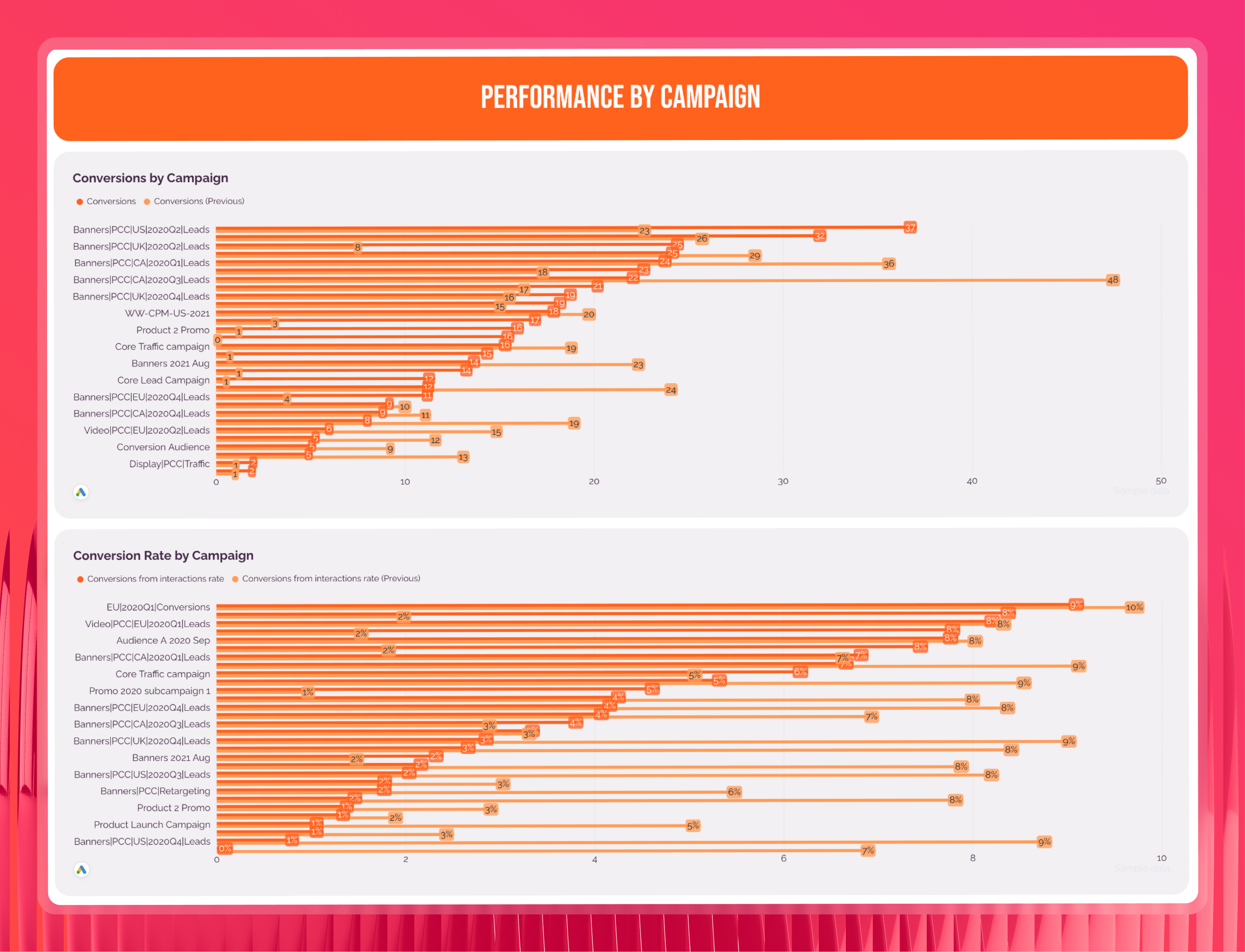
This section breaks down how each Google Ads campaign contributed to the overall lead total.

Show using a horizontal bar chart, sorted from highest to lowest conversion volume:

  • Conversions per campaign - how many leads each campaign generated
  • Conversion rate per campaign - the percentage of clicks that converted for each campaign

Why show both? Two campaigns with the same number of leads can tell completely different stories if one converted at 8% and the other at 1%. Volume alone misleads budget decisions. Showing conversion rate alongside volume gives clients - and account managers - the full picture before reallocating ad spend.

This view directly informs decisions about where to scale, where to pause, and where ad copy or landing pages need work.

4. Keyword performance
keyword performance - Google ads reporting tool.png

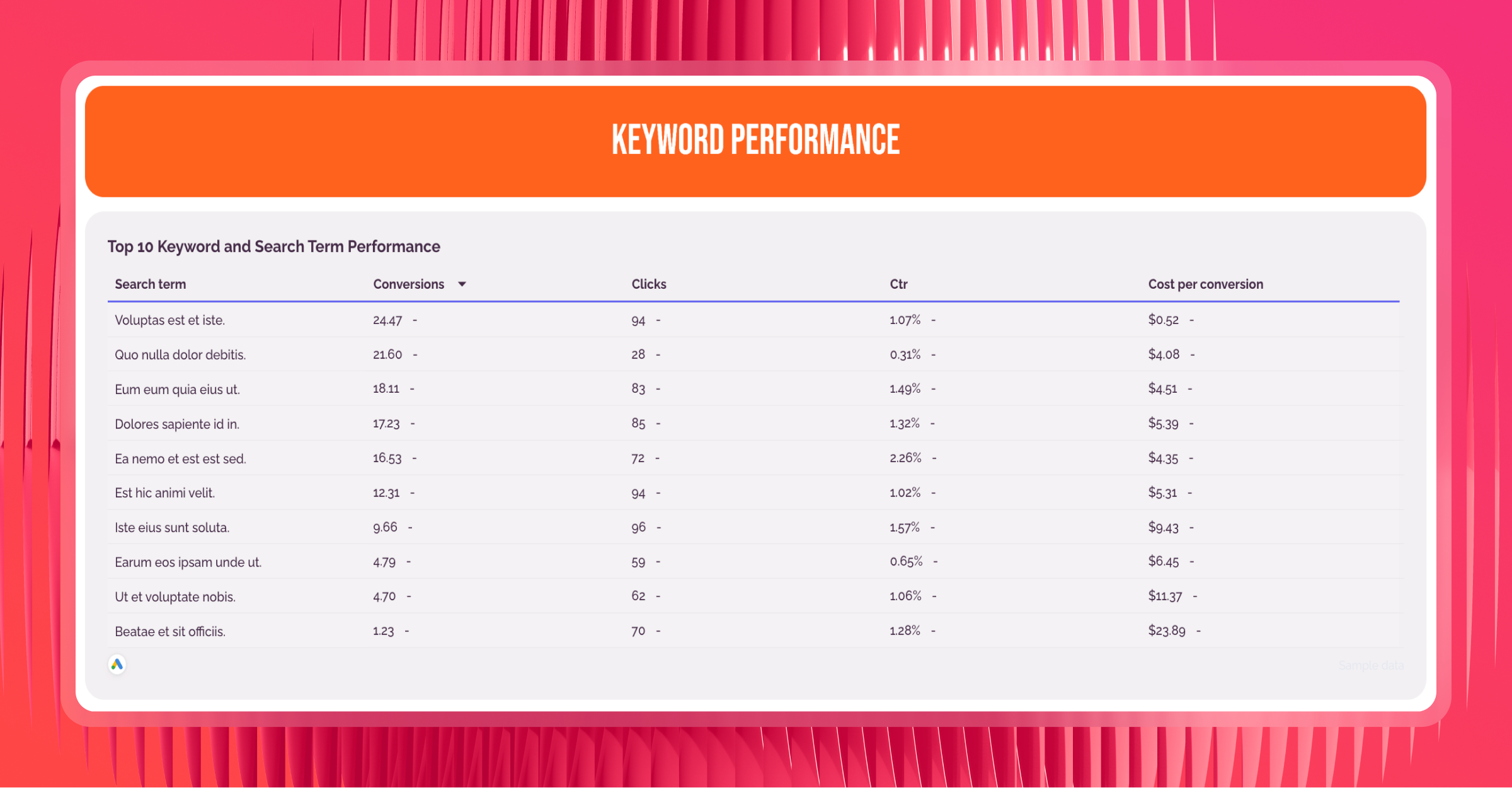
This section surfaces the actual search queries that drove conversions, not just the keywords the account was bidding on.

Use a top 10 table showing:

  • Search term - what people were actually searching when they converted
  • Conversions - how many leads that search term generated
  • Clicks - volume of traffic from that term
  • CTR - how relevant the ad was to that query
  • Cost per conversion - efficiency of that term, which drives keyword bidding decisions

Why search terms over keywords? The gap between what you bid on and what actually converts is where most wasted ad spend hides. This view is the foundation for negative keyword decisions, match type adjustments, and identifying high-intent queries worth building dedicated campaigns around.

5. Performance Max visibility
performance max - Google ads reporting tool.png

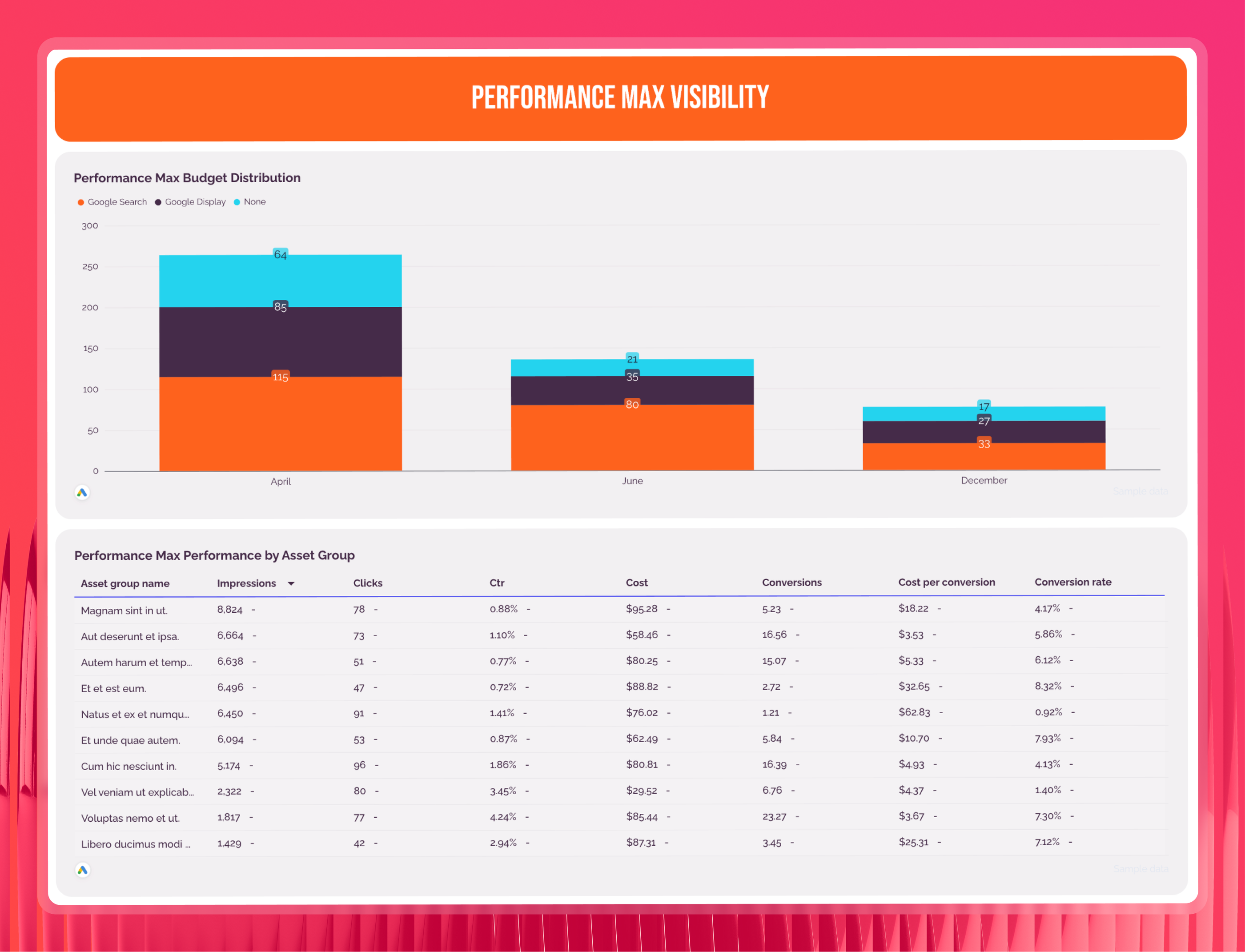
This section only appears when Performance Max campaigns are active in the account.

Show using a stacked bar chart and asset group breakdown:

  • Channel split - how Performance Max is distributing spend across Search, Display, and YouTube each month
  • Ad asset group performance - which asset combinations are generating conversions and at what cost

Performance Max campaigns run autonomously across multiple channels. Without visibility into where Google's algorithm is placing budget, it's impossible to know whether it's prioritizing placements that generate real leads - or optimizing for cheaper clicks that don't convert. This section keeps the algorithm accountable.

6. Key metrics by week
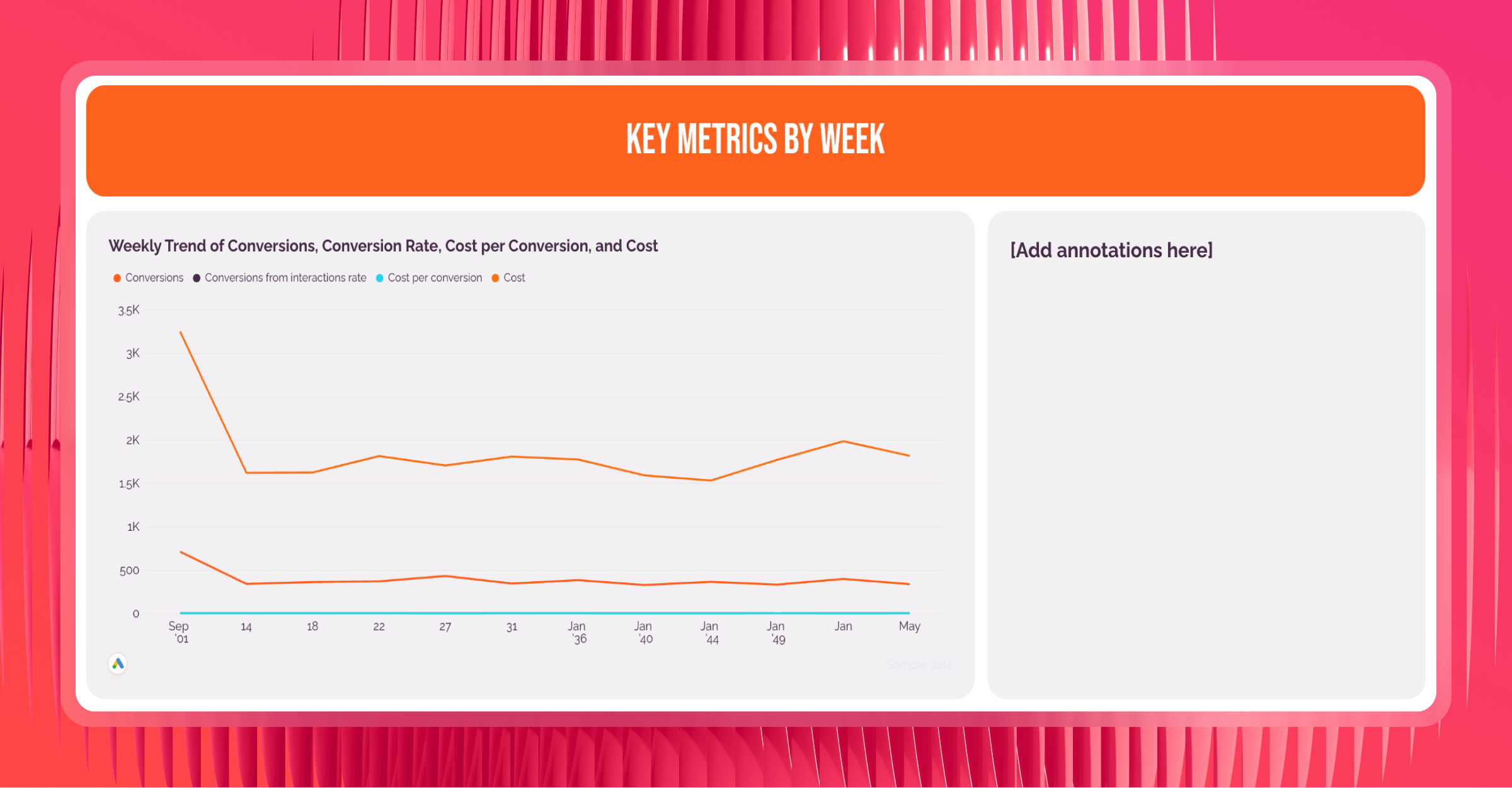
Key Metrics - A Key metrics dashboard visualizing trends in conversions and cost.

Monthly totals can hide what's really happening inside a campaign. This section plots performance week by week over the last 13 weeks.

Show as a line chart:

  • Conversions per week - to spot when lead volume shifted
  • Conversion rate per week - to see whether efficiency changed alongside volume
  • Cost per conversion per week - to catch any cost increases before they compound
  • Total cost per week - to flag budget pacing issues early

Ameet recommends showing the weekly view instead of daily, as daily data for lead gen campaigns has too much natural noise

Leads typically slow on weekends regardless of campaign health. Weekly data smooths that out so clients see genuine trends rather than reacting to a single slow Monday. Add analyst annotations to explain unusual weeks, such as budget changes, new landing pages, or seasonal shifts.

7. Audience insights
audience insights -Google ads reporting tool.png

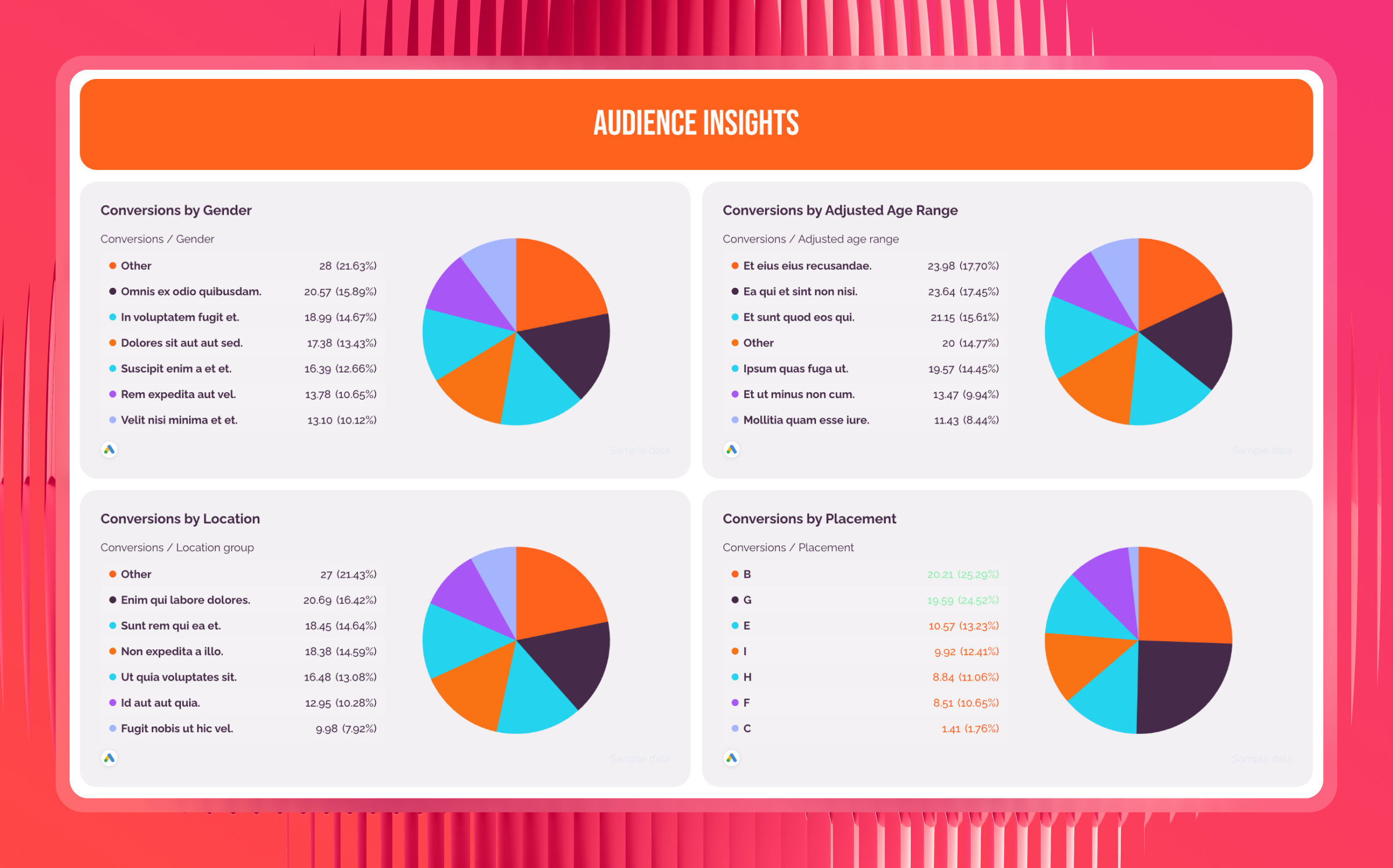
This section breaks down performance by who is converting - not just how many.

Show using bar charts or pie charts segmented by:

  • Gender - which gender drives more conversions and at what cost per lead
  • Age group - which age brackets convert most efficiently, to inform bid adjustments
  • Location - which geographic areas generate the most leads, and which are consuming budget without results
  • Placement - where the ad appeared when it drove a conversion

Demographic data directly informs where to increase bids and where to cut them. Two age groups might have the same number of conversions but very different costs per lead. This section makes those differences visible and actionable.

8. Overview and next steps
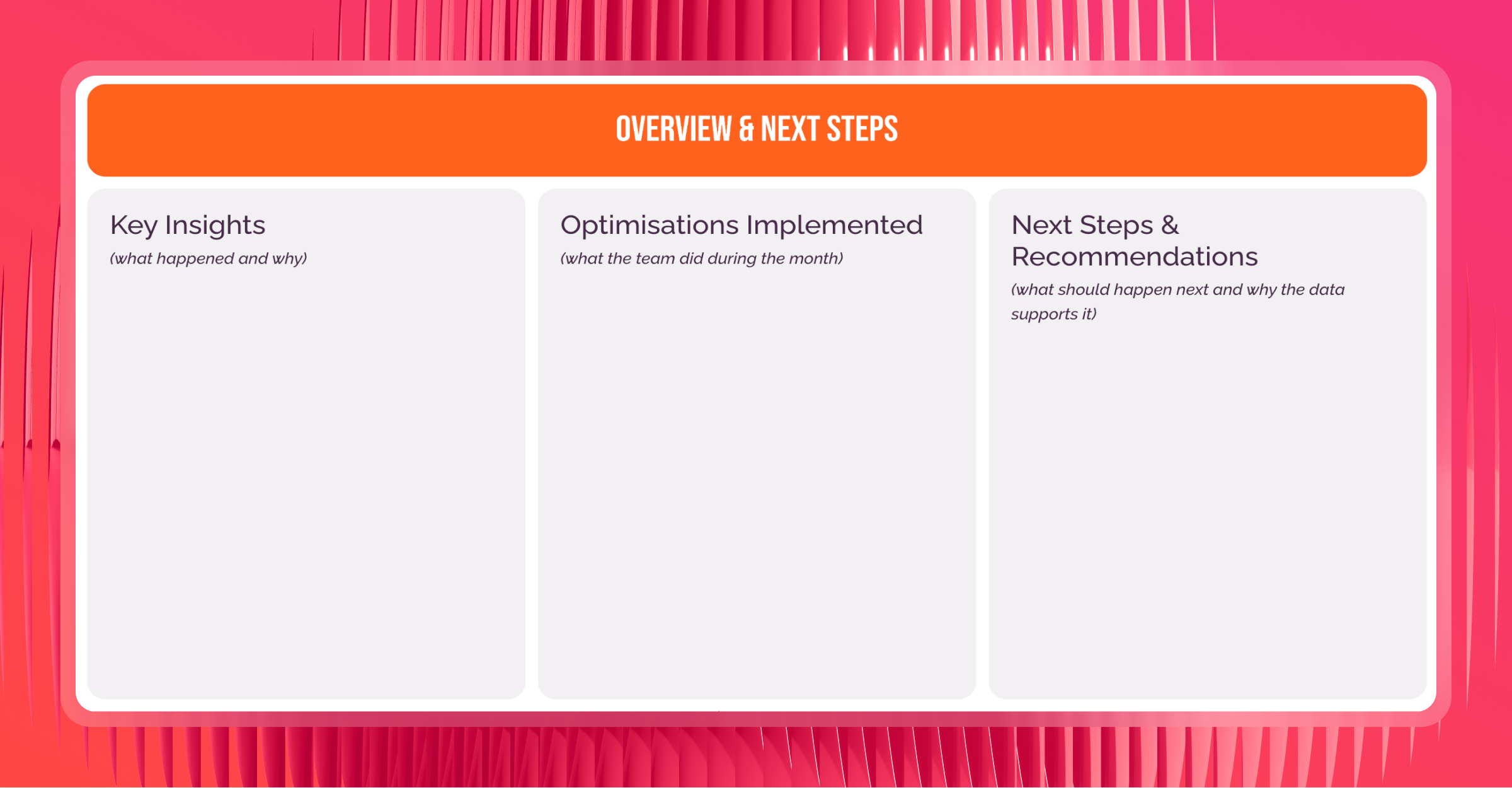
Overview & Next Steps - A three-panel presentation layout on a pink striped background.

This is the section clients actually read. Everything else in the report builds toward it.

It covers three things:

  • Key insights - what happened during the month and why, in plain language
  • Optimizations implemented - what the account manager actually did during the reporting period
  • Next steps and recommendations - what should happen next, backed by the data in the marketing report

This is the only section that requires analyst input. Everything else is automated. With Whatagraph IQ, you don't need to write it from scratch - ask AI to generate the performance summary based on the data on your report, choose the format and length, then edit for tone before sending. Since IQ reads directly from your report data, there are no hallucinations.

As Stephen Samuel, Founder of NexFusion, puts it:

The biggest mistake is dumping a spreadsheet of metrics with no context. Clients do not need to see every number, just the ones that matter. A simple fix is to create a one-page executive summary with three clear sections: what is working, what needs improvement, and the action plan for the next month.

Want to replicate this exact report structure? Grab the Google Ads report template co-created with Ameet and connect your data in minutes.

What are the key metrics to include in a Google Ads report template?

The metrics you track in a Google Ads report depend on your campaign goals. But across all account types, there are five core categories worth monitoring.

Here's a breakdown of what each covers and why it matters.

1. Business outcome metrics

These are the numbers clients open the report to see. Lead volume and cost efficiency come first - before any traffic or delivery data.

  • Conversions - the total number of leads generated - the primary measure of whether Google Ads is working
  • Conversion rate (CVR) - the percentage of clicks that turned into conversions
  • Cost per conversion - how much each lead or sale costs; the metric most clients care about most
  • Total cost - total ad spend for the period; gives context to every other metric and tracks whether you're on pace with the budget

2. Media health metrics

Media health metrics explain how the results were delivered.

  • Impressions - how many times your ads were shown; useful for gauging overall reach
  • Clicks - the number of users who clicked through
  • Click-through rate (CTR) - the ratio of clicks to impressions; a signal of how relevant your ad copy is
  • Cost per click (CPC) - the average amount paid per click; tracks auction competitiveness and flags rising costs

3. Campaign and keyword performance metrics

These tell you where results are actually coming from - and where budget is being wasted.

  • Conversions by campaign - how many leads each Google Ads campaign generated; the starting point for any budget reallocation decision
  • Conversion rate by campaign - the efficiency of each campaign
  • Search term performance - the actual queries that drove conversions, not just the keywords you bid on
  • Clicks, CTR, and cost per conversion by search term - the supporting metrics that tell you whether a search term is cost-efficient enough to scale

4. Audience insight metrics

These show who is converting - and who is consuming budget without results.

  • Conversions by gender - breaks down cost per lead by gender; informs when one segment is consistently more efficient
  • Conversions by age group - identifies which age brackets drive the most leads at the lowest cost; useful for narrowing targeting
  • Conversions by location - shows which geographic areas are generating the most leads; directly informs geographic bid adjustments
  • Conversions by placement - reveals where ads appeared when they drove a conversion

5. Weekly trend metrics

Monthly totals are useful for client reporting, but they can hide what's actually happening inside a campaign period.

  • Conversions per week - spots when lead volume shifted, so you can connect the change to a specific action or external factor
  • Conversion rate per week - tracks whether efficiency improved or declined alongside volume changes; a falling CVR with stable spend is an early warning sign
  • Cost per conversion per week - catches cost creep before it compounds into a month-end problem
  • Total cost per week - flags budget pacing issues early, particularly for accounts with monthly spend caps

Connect All Your Paid Ads Data in One Place

Bring all your paid ads data into one place with no-code, stable connectors that you don't need to babysit. 

Google Ads logoLinkedIn Ads logoReddit Ads logoFacebook Ads logo
Snapchat Ads logoPinterest Ads logoTikTok Ads logoGoogle Analytics 4 logo

Why Marketers Love Whatagraph

Whatagraph's AI is saving so much time and energy for our marketing specialists. We now have more time to focus on strategic things that help both our agency and our clients grow.

Lars Maat

Lars Maat

Co-Founder @ Maatwerk Online

StarStarStarStarStar

Whatagraph took us to the next level with our clients and within our team. Our relationships with clients have been amazing, and we’ve even been able to retain them longer.

Kim Strickland

Kim Strickland

Digital Marketing Specialist @ Peak Seven

StarStarStarStarStar

Whatagraph has become an essential partner for scaling our reporting, and my teams love it because it saves so much time. We’d recommend it to any team looking to automate data reporting and use AI for insights.

Danielle Roberts

Danielle Roberts

Director of Implementation & Support @ Rentable

StarStarStarStarStar

Whatagraph is easy to use, visually attractive, and much smoother compared to tools like Looker Studio.

Stef Oosterik

Stef Oosterik

Quality Manager @ Dtch. Digitals

StarStarStarStarStar

Frequently Asked Questions

Have more questions? We answered them below.

What is a Google Ads report template?

A Google Ads report template is a ready-made framework that helps marketers track and share Google Ads performance in one place. Instead of building reports manually, you can plug in your Google Ads data and instantly see your campaign performance, key metrics, and trends, all beautifully visualized.


With a ready-made Google Ads report template, you can track KPIs like CTR, CPC, conversions, and ROAS in one view. You’ll see which ad groups and keywords drive the best results and where to optimize your ad spend.


In Whatagraph, the template connects directly to your Google Ads data and visualizes key metrics. You can customize widgets, automate updates, and even white-label the report before sharing it with your team or clients.

What are the key metrics to include in a Google Ads report template?

The metrics you include in your Google Ads report should reflect your campaign goals, whether that’s driving traffic, generating leads, or increasing ROAS. 


Below is a breakdown of the most important performance metrics to track, along with what each one tells you and why it matters to your clients or team.


1. Core Performance Metrics


Impressions: The number of times your ad was shown. This gives you a baseline for ad visibility and potential reach.


Clicks: The total number of clicks on your ad. Helps you measure how well your ads are capturing user interest.


Click-Through Rate (CTR): The percentage of impressions that resulted in clicks (Clicks ÷ Impressions). A high CTR indicates your ad copy and targeting are resonating with your audience.


Average Cost Per Click (CPC): How much you’re paying on average for each click. This helps you monitor efficiency and control ad spend.


Cost Per 1,000 Impressions (CPM): The amount you pay for every 1,000 impressions your ad receives. CPM is especially useful for brand awareness campaigns where visibility is more important than direct clicks or conversions.


2. Conversion & Revenue Metrics


Conversions: The number of desired actions taken after a user clicks an ad—such as form submissions, purchases, or signups. It’s a key indicator of campaign success.


Conversion Rate: The percentage of clicks that led to conversions. Helps assess landing page effectiveness and overall funnel performance.


Cost Per Conversion / Acquisition (CPA): How much you’re spending to generate one conversion. Lower CPA typically means better campaign efficiency.


Return on Ad Spend (ROAS): The revenue generated for every dollar spent. Essential for understanding the profitability of your campaigns.


3. Audience & Behavior Metrics


Top Performing Keywords: Shows which search terms are driving the most traffic or conversions. Useful for keyword optimization and budget allocation.


Search vs. Display Performance: Breaks down how each campaign type is performing. Helps you decide where to invest more of your budget.


Device Breakdown: Reveals performance across desktop, mobile, and tablet. Useful for optimizing landing pages and ad formats.


Geographic Performance: Shows which locations deliver the best results. You can use this to refine targeting or adjust bidding strategies.


Demographics (Age, Gender, etc.): Understand which audience segments are engaging and converting. Useful for refining audience targeting.


4. Engagement & Quality Metrics


Quality Score: Google’s rating of your ads based on CTR, landing page experience, and ad relevance. A high Quality Score ‘can lower CPC and improve ad rank.


Ad Position / Impression Share Ad position shows where your ad is typically shown on the page. Impression share shows how often your ad was eligible to appear but didn’t—usually due to budget or bid.


View-Through Conversions: Conversions from users who saw your ad but didn’t click—then converted later through another channel. Important for understanding full-funnel performance.


Time on Site / Session Duration: Measures user engagement after the click. If people bounce quickly, your landing page or targeting might need adjustments.


Scroll Depth: Tells you how far users scroll on the landing page. Helps assess content engagement and identify drop-off points.


5. Attribution & Funnel Metrics


Assisted Conversions: Tracks conversions where your Google Ads played a role in the buyer journey, but weren’t the final interaction. Helps show the broader value of your campaigns in multi-touch funnels.


First-Time vs. Returning Visitors: Reveals whether your ads are attracting new audiences or bringing back existing ones. Important for brand awareness and retention strategies.

What is a Google Ads report?

A Google Ads report is a performance summary that shows how your campaigns are doing. It brings together data from your Google Ads account, impressions, clicks, CTR, conversions, cost, and ROAS, so you can track results, measure ROI, and make smarter optimization decisions. 

Why use a Google Ads report template?

A Google Ads report template saves time and removes the guesswork from reporting. Instead of building dashboards manually, you get a pre-built structure that already includes the right KPIs, visualizations, and comparisons. It helps marketers automate, white-label, and share reports effortlessly.


Top agencies and in-house teams use templates like Whatagraph’s because they can track campaign performance across multiple clients, channels, and date ranges, all in one real-time view.

How do I automate Google Ads reports?

The easiest way to automate Google Ads reporting is by using a dedicated reporting tool like Whatagraph.


With Whatagraph, you can automatically pull data from Google Ads (and dozens of other platforms), visualize key metrics, and schedule reports to be sent out on a regular cadence—weekly, monthly, or custom. 


You don’t need to write formulas, mess with data connections, or manually update anything. Once you’ve set it up, the data flows in and reports go out—consistently and reliably.


Another option is to use Google Looker Studio (formerly Data Studio). It’s free and works well for visualizing data from Google platforms like Google Ads, GA4, and YouTube. 


However, there are a few important limitations to be aware of:


  • Reports can become extremely slow or unresponsive if you’re working with high volumes of data.


  • If you want to include data from non-Google sources like Meta (Facebook/Instagram Ads), TikTok, or LinkedIn, you’ll need to use third-party connectors.


  • Many third-party connectors are prone to breaking due to API updates, token expiration, or rate limits. When that happens, your data go missing or appear inaccurate, and you’ll have to manually reconnect the source—which takes time and creates unnecessary headaches. 


In contrast, Whatagraph uses fully-managed native integrations that are maintained by an in-house team. That means fewer connection errors, more stable reporting, and no more scrambling to fix broken dashboards.


If your reporting needs are simple and Google-only, Looker Studio might do the job. But if you want to save time, eliminate errors, and automate multi-channel reporting at scale, a tool like Whatagraph will give you a much smoother experience.


Here's the full breakdown of Looker Studio vs. Whatagraph.

How to prepare a Google Ads report?

To prepare a Google Ads performance report, connect your data sources like Google Ads, Google Analytics, or Google Sheets. Choose key metrics that matter most to your goals, such as CTR, conversion rate, CPC, and ROAS. Then, visualize them using charts or tables to show trends and comparisons.


In Whatagraph, you can automate the entire process, select a Google Ads reporting template, connect your account, and generate a professional PPC report in minutes instead of hours.

Where can I find a customizable Google Ads report template?

You can find fully customizable Google Ads report templates in Whatagraph. Each template connects directly to your Google Ads campaign, visualizes your performance metrics, and automates updates.


You can personalize widgets, brand the report with your logo, or combine it with other data sources like Facebook Ads, LinkedIn, or SEO. 

How do you know if your Google Ads are doing well?

To help you understand your Google Ads performance, we published two calculators:


  • PPC ROI Calculator: Find out if your campaigns are actually profitable. Just plug in your spend and revenue numbers.
  • CPC Calculator: Measure how much you’re paying for each click and compare it against benchmarks for your specific industry.


Want to benchmark your results? Here’s what good typically looks like:

  • Click-Through Rate (CTR): The average CTR across all industries is 6.42%. (Source)
  • Cost per click (CPC): The average CPC across all industries is $4.66. (Source
  • Conversion Rate: The average conversion rate across all industries is 6.96%. (Source) But this metric varies significantly by industry, with some sectors like Automotive Repair, Service, and Parts achieving rates as high as 12.96%. (Source)

Why is Google Ads performance reporting important?

Google Ads campaigns involve real budget. Without regular reporting, you have no way to know whether that budget is generating returns - or quietly draining into the wrong campaigns, audiences, or keywords.


A good Google Ads performance report helps you:


  • Prove ROI to clients or leadership with clear, visual data
  • Catch performance drops early - before they become expensive problems
  • Make faster budget decisions based on what's actually converting
  • Build client trust through consistent, transparent communication

How do I download a Google Ads report?

You have a few options depending on what you need:


From Google Ads directly:


  1. Log into your Google Ads account
  2. Navigate to the "Reports" section
  3. Select or build a custom report
  4. Click "Download" and choose your format - CSV, Excel, or PDF


The limitation: downloaded reports are static. Every time something changes, you export again.


From Whatagraph:


  1. Connect your Google Ads account via Whatagraph's native integration
  2. Open your Google Ads report template
  3. Click "Export" to download as a PDF or CSV - or share a live link so stakeholders always see up-to-date data


The difference is that Whatagraph reports update automatically. You download once when you need a static file, or share a live link for ongoing access - no manual exports required.

How can I automate Google Ads reporting with templates?

Connect your data source once, and Whatagraph handles the rest. Here's how it works:


  1. Connect your Google Ads account - authenticate with your login, no dev work or third-party connectors needed
  2. Set up your report template - use a ready-made Google Ads template or build your own layout with the metrics that matter to your clients
  3. Schedule automated delivery - choose weekly, monthly, or quarterly, and set up automated email delivery to clients or stakeholders
  4. Share a live link - clients can check in on performance any time without needing a login or waiting for the next send


With Whatagraph IQ, you can also ask AI to generate performance summaries automatically - so the written commentary in your report is ready before you even open it.


And Google Ads is just the start. Whatagraph also connects with SEO tools, social media platforms, Google Analytics 4, and e-commerce data sources - so you can bring all your client reporting into one place.

How do I use a Google Ads report template to track campaign performance?

Start by making sure your template covers the right layers of performance - not just traffic, but outcomes.


A well-structured Google Ads report template tracks:


  • Business results first - conversions, conversion rate, cost per conversion, and total ad spend
  • Delivery metrics second - impressions, clicks, CTR, and CPC as supporting context
  • Campaign breakdown - which campaigns are generating the most leads and at what cost per conversion
  • Keyword and search term data - the actual queries driving results, not just the keywords you're bidding on
  • Audience performance - which demographics are converting efficiently and which are consuming budget without results
  • Weekly trends - how performance shifted across the month, so you catch problems before the reporting cycle ends


Once connected in Whatagraph, these metrics update in real time. 


You can review performance any time, share a live link with clients, or send a branded report on a fixed schedule - without touching a spreadsheet.