Ad Spend Tracking: How to Keep Every Client on Budget in 2026
Ad spend tracking records advertising costs across accounts, campaigns, and channels and compares them with the approved budget.
This guide covers how to build one spend number every channel agrees on, calculate pacing, decide what counts as off pace, and put IQ Agents on monitoring duty.

Oct 05 2026●20 min read


- What is ad spend tracking?
- Step 1: Build one spend number every channel agrees on
- Step 2: Calculate whether your spending is on pace
- Step 3: Decide what "off pace" means for you
- Step 4: Use IQ Agents to track ad spend
- Step 5: Review flagged campaigns and approve budget changes
- What are the best ad spend tracking tools for digital marketing agencies?
So long as people buy things, there will be ads. And newer ad platforms will proliferate to capture their money. Sensor Tower reports that financial services grew from 2% to 12% of U.S. ChatGPT ad spend between April and July 2026.
That’s another place for clients to spend, and yet another set of numbers for you to reconcile. You now have more channels, but the same hours in a working day.
And with dozens of clients, ad spend tracking takes a sizeable bite out of those hours.
You need to catch overspending before the money runs out, and underspending while there’s still time to catch up.
As TagHero founder Brett Fish says in Practical Ecommerce: “I might produce the best ad known to man, but improper setup leads to bad data and subpar performance.”
So that’s where we’ll start: underneath the dashboard, with the number itself. We’ll build the process from the spend definition up, work through the pacing math, and show you how to put Whatagraph’s IQ Agents on monitoring duty.
Let’s mosey. We’re going to claw your mornings back from manual ad spend checks.
What is ad spend tracking?
Ad spend is the money paid to place and run advertisements during a given period. Ad spend tracking records those costs across accounts, campaigns, and channels and compares them with the approved budget.
An ad spend tracker holds those figures, whether it’s a spreadsheet or dedicated software. An ongoing search for ad spend that needs attention is called ad spend monitoring.
But one search term has managed to acquire three jobs:
- Your own ad spend: This is keeping tabs on your budget, or your clients’ budgets. This is the advertising spend tracking we’re here for.
- The competition’s ad spend: This is estimating what other brands spend. A little professional nosiness that needs different tools and a different guide altogether.
- The budget itself: This includes deciding how much to allocate before the platforms help you spend it.
We’re staying with the first.
Even budget pacing needs a small introduction. Here, it means checking spending against the plan over a campaign, month, or year; platforms also use the term for controlling ad delivery throughout the day.
How is ad spend calculated?
The total ad spend is the sum of advertising costs across your campaigns and channels for a chosen period.
The amount attributed to each campaign depends on the way it’s billed. The calculations for clicks, impressions, and views are different, even when the ads are working toward the same goal.
Take Google and TikTok, for example:
- Your Google Ads campaign might charge per click: In a CPC campaign, spend equals clicks x average actual cost per click. Google also distinguishes between served cost and billed cost, that is, what the delivered clicks or impressions cost, and what you owe after adjustments such as invalid-activity credits.
- Your TikTok conversion campaign can charge per impression: TikTok targets people likely to take the desired action with optimized cost per thousand impressions (oCPM), but bills by impression. Spend therefore equals impressions ÷ 1,000 x average actual CPM.
And that’s only two platforms accounted for, by the way. Add Meta or newer arrivals like OpenAI ads, and you have more billing and reporting details to check. Even within Google and TikTok, the calculation depends on the campaign setup.
So by the time those costs reach your tracker, they need to speak the same language: the same dates, the same currency, and the same rules for adjustments.
No wonder Truthset CEO Scott McKinley describes the cost of inaccurate advertising data as an “accuracy tax” in AdWeek: “Whether they realize it or not, advertisers are paying an accuracy tax levied at every stage of the data pipeline.”
So before we decide whether we’re spending too much, let’s agree on how much we’ve spent.
Step 1: Build one spend number every channel agrees on
Start by writing down what your spend total includes: the accounts, reporting dates, currency, and treatment of credits, taxes, and fees. Match those rules to the budget you’re measuring against, then have every report use them.
That’s marketing data governance in action: whoever opens the dashboard next should inherit the definition, too.
Check what each spend field contains across different ad platforms
Each platform hands you a spend figure with its own small print. Here’s what to check so you don’t import marketing data quality issues along with the numbers:
| Ad platform | What does it call spend? | What’s the unit reported? | What’s included? | Pay attention to… |
|---|---|---|---|---|
| Google Ads | Cost; metrics.cost_micros in the API | The raw API values use millionths of the account currency. | The advertising costs for the selected reporting period and level. | Divide raw micros by 1,000,000. Your connector may already do this; served and billed costs can also differ after adjustments. |
| Meta Ads | Amount spent; spend in the API | The account-currency amount. | The spend for the selected account, campaigns, ad sets, or ads, including boosts charged to that account. | Account, campaign, and ad-set totals describe overlapping spend; adding them together counts the money repeatedly. |
| TikTok Ads | Cost | The account-currency amount. | The advertising costs within the selected scope and dates. | The Billing > Transactions > Cost view can show spending since the last billing cycle. |
If Google’s raw figure looks a million times too enthusiastic, check the units before escalating. And check whether they’ve already been converted before dividing again.
Also, “organic” can come with a paid contribution. For instance, Facebook Page totals can include activity from boosted posts. So adding paid results to those totals can count the same activity twice.
Check the individual metric instead. Whatagraph’s Facebook Page documentation identifies a “From ads” breakdown for both Page and post views. Use that split where available. You can also subtract paid views from total views when their dates, scope, and definitions match; unique reach needs separate treatment because audiences can overlap.
For spend, count each boost’s cost once, through the ad account that paid for it.
Align the currency, dates, and reporting level
Together, these rules make your monthly ad spend reproducible. Ideally, without summoning whoever built the spreadsheet:
- Your currencies need one conversion rule: Keep the original currency, choose a reporting currency, and document which exchange rates you use and when. Apply the same policy to your ad spend budget and actual spend.
- Your reporting dates need boundaries: Your accounts in different time zones close their days at different times. Record those settings and agree on a reporting cutoff.
- Your account totals already contain the campaigns underneath them: Choose one reporting level, then roll it up. Use account and campaign IDs to avoid duplicate imports, and check that joining budget data hasn’t repeated the same budget across every ad-set row.
Keep a record of budget changes, too. When someone changes a budget, keep the old figure, because today’s setting won’t tell you what the team was working toward three weeks ago.
We appreciate a good old-fashioned spreadsheet here. Record the account or campaign, approved amount, currency, effective dates, and who approved each revision.
Write the rules once, then reuse them
A performance marketer our team spoke to inherited reporting across three regions. Each team produced its own reports, but they hadn’t agreed on what counted as a conversion. When you put those reports side by side, the same column heading could mean three different things.
Take that lesson and apply it to your spending. The regional teams need to agree on which costs to include, currency conversions, and reporting dates. If not, the person preparing the global report inherits three totals and a reconciliation job.
Bring the reconciled ad spend data into one view for cross-channel analytics. Then have dashboards, client reports, and monitoring agents read that same calculation.
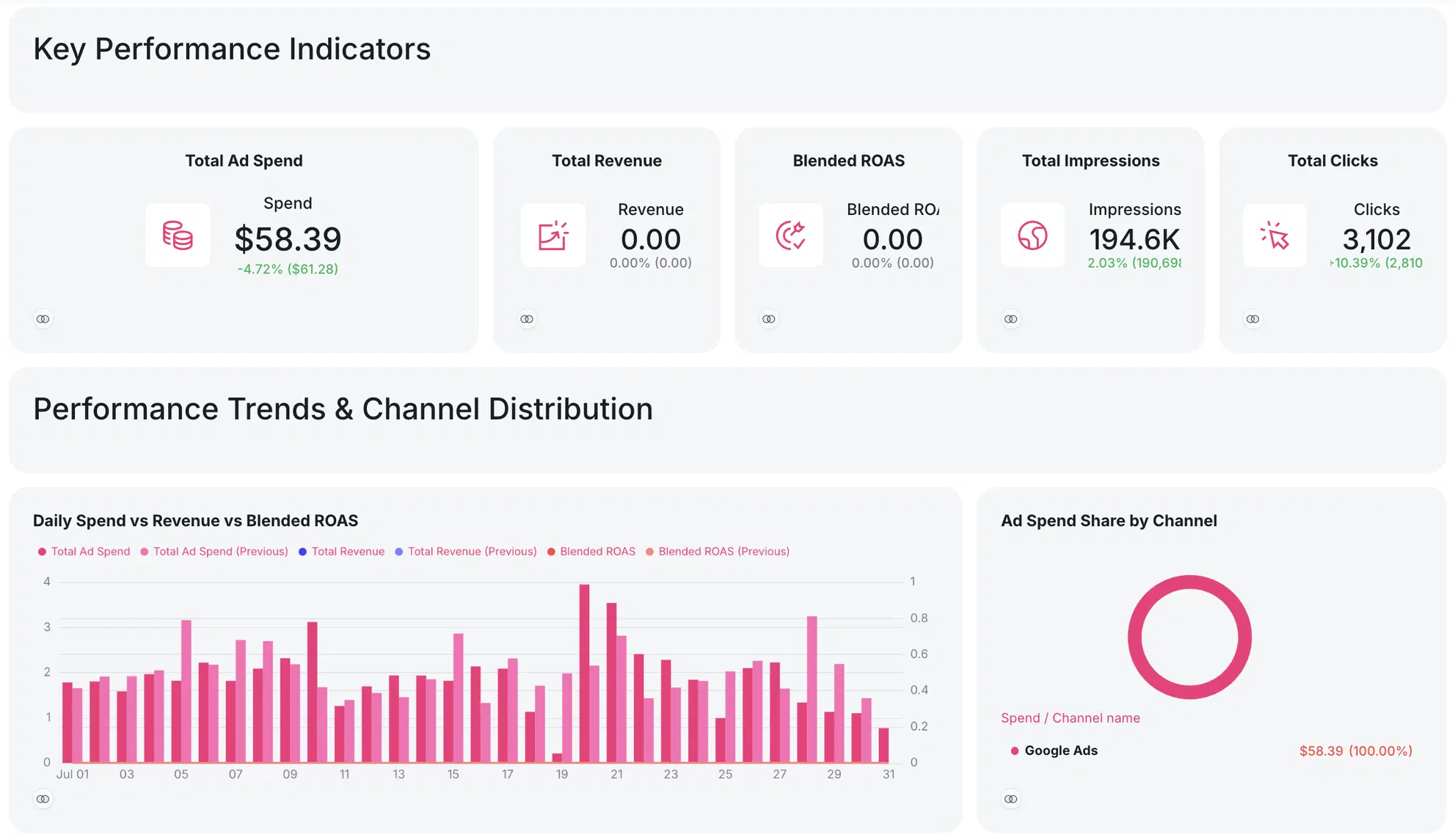
Check out the full report template here.
In Whatagraph’s Data Hub, Custom Metrics hold the spend calculation, Source Groups combine accounts from the same channel, and Blends bring channels together. The automatic currency conversion feature handles the reporting currency.
Those shared definitions can then feed your reports and agents.
👉Test whether your data and workflows are ready to handle the morning shift before giving it to an agent with our AI readiness quiz.
Step 2: Calculate whether your spending is on pace
Start with your approved budget, the number of days in the budget period, and spend through the last complete reporting day. Keep the cutoff consistent.
For a monthly budget spread evenly across the month:
| The figure | How to calculate it? |
|---|---|
| Month elapsed (%) | Completed days ÷ days in the month x 100 |
| Budget spent (%) | Spend to date ÷ monthly budget x 100 |
| Expected spend to date | Monthly budget x completed days ÷ days in the month |
| Pacing (%) | Spend to date ÷ expected spend to date x 100 |
| Projected monthly spend | Spend to date ÷ completed days x days in the month |
| Projected budget attainment (%) | Projected monthly spend ÷ monthly budget x 100 |
A pacing figure of 100% means spending matches the plan so far. Above 100% means you’re spending ahead of it; below 100% means you’re behind. 100% pacing means you’re on schedule, not that you’ve spent the entire budget.
The monthly projection above assumes spending continues at its average rate so far. If delivery has recently changed, use a shorter window:
The projected monthly spend = spend to date + (average daily spend over the last seven complete days x remaining days).
Then compare actual spend over those seven days with their planned allocation, too. For an evenly spread monthly budget, that allocation is monthly budget ÷ days in the month x 7.
Keep your spend pacing separate from conversion performance. That’s because conversions can arrive after the spending that generated them. You can be on budget while conversion reporting is still catching up.
If spending is planned around launches, promotions, or particular weekdays, use the approved allocations through your reporting date as expected spend. For an annual budget, follow the agreed monthly or seasonal plan.
February needn’t spend like December.
Now you decide how far from the plan a campaign can stray before someone needs to act.
Step 3: Decide what "off pace" means for you
After you trust the spend figure, you have a more human problem: when to bother someone.
A campaign being slightly behind on Tuesday may need no intervention whatsoever. But A campaign still behind with two days left and a client who needs the full spend? Send the Slack, email, an ominous hello on LinkedIn.
Your pacing dashboard also needs to know the difference before it starts coloring things red.
You can set two kinds of triggers:
- Your fixed threshold compares spending with the plan: For example, flag campaigns projected to spend more than 10% over budget. If the client can’t allow any overspend, flag them as soon as they’re projected to exceed the budget.
- Your relative threshold compares the campaign with itself: Flag a delivery drop that’s unusual for a particular campaign, even if it hasn’t crossed a budget limit. That requires a baseline of comparable weekdays, recent spending patterns, and allowances for promotions or planned pauses.
In fact, one agency we spoke to specifically requested relative parameters because they hadn’t set goals in the reporting system. The campaigns were running; the settings panel, on the other hand, wasn’t keeping up.
For another agency’s nonprofit client, leaving money unspent was a serious miss. The agency owner told us that a campaign allocated $300 couldn’t simply spend $210 and call the remaining $90 a saving. The client needed every dollar deployed. They also couldn’t spend money they didn’t have.
Ad budget monitoring therefore needs an upper and a lower threshold. You need to agree on the acceptable shortfall, then flag it early enough to do something about it.
Read the percentage alongside the calendar
Set tolerances around:
- The client’s room to move: A fixed allocation needs tighter limits than a budget with an approved contingency.
- The money behind the percentage: Read the cash amount, too. A small percentage of a large budget can still require an uncomfortable approval.
- The time left to recover: Tighten checks as the deadline approaches; allow for agreed spending bursts.
In addition to changing the amount you can spend, costs also affect what you can buy. In our compilation of 100+ PPC benchmarks, average paid-search CPCs are $9.87 for legal services and $1.63 for arts and entertainment.
Use those figures to check cost expectations; use the client’s approved spending plan to judge pace.
Allow the report to say “none”
In one case, an agency specifically requested that when their spend check revealed no issues, the output should read as “none.”
A complete answer. Quite a lovely one, when you have dozens of accounts.
Decide when each alert should fire again. If someone is already handling the problem, send another warning only if it gets worse or an agreed deadline passes without a fix.
For smaller changes, wait until the next check to see whether they persist. If the campaign’s about to exhaust its budget, flag it immediately.
Step 4: Use IQ Agents to track ad spend
You need to catch budget problems across every client. Preferably before a client catches one for you.
A spreadsheet, AI reporting tool, or agent can help:
| The job | A spreadsheet | A dashboard/AI reporting tool | A scheduled agent |
|---|---|---|---|
| How do you get fresh numbers? | You import them, or set up a connection. | The tools refresh through connected sources. | The agent retrieves connected data when it runs. |
| Who checks for trouble? | You, unless you’ve added automated checks. | You, plus any alerts you’ve configured. | The agent runs the checks and sends the findings. |
| How do you spot something unexpected? | Depends on your analysis and checks. | Some tools include anomaly detection. | You can set up alerts; it needs the data and instructions to investigate. |
| Can you cover 50 clients? | Possible; someone inherits the upkeep. | A portfolio view helps; 50 separate dashboards, less so. | Yes; it can check connected accounts within its access and usage limits. |
| Where can it go wrong? | A broken formula keeps looking like a valid number. | A stale connection keeps looking like current data. | A vague brief leaves too much to interpretation; broken connections still apply. |
| Can you work the way you want? | You control the layout and logic; move budgets around, model scenarios, build pivot tables. | You can customize within the tool’s reporting options. | Give a brief description of the task; its ability depends on the tools it has connected to it, as well as the data. |
And if your spreadsheet already works, keep it. In fact, one agency owner we spoke to defended hers because she could move figures around, shift budgets, and build pivot tables. A fair defense.
Connect that sheet to your agent so it can read the approved budgets, compare them with spend, and flag exceptions. You can still rearrange the pivot tables to your heart’s content.
At Whatagraph, our Demand Generation Manager, Oksana, built an agent for finding spend that produces little or no reported conversion activity. Her Google Ads Wasted Spend Monitor checks search terms, ad groups, and other campaign elements.
The instructions live in the agent, so she doesn’t have to explain the assignment again every morning. The agent reads the same governed spend definition as the client report, so both start from the same number.
We’ll walk through that setup below. For budget pacing, you’ll also give your agent the approved budget record and the rules you’ve just defined for overspending and underspending.
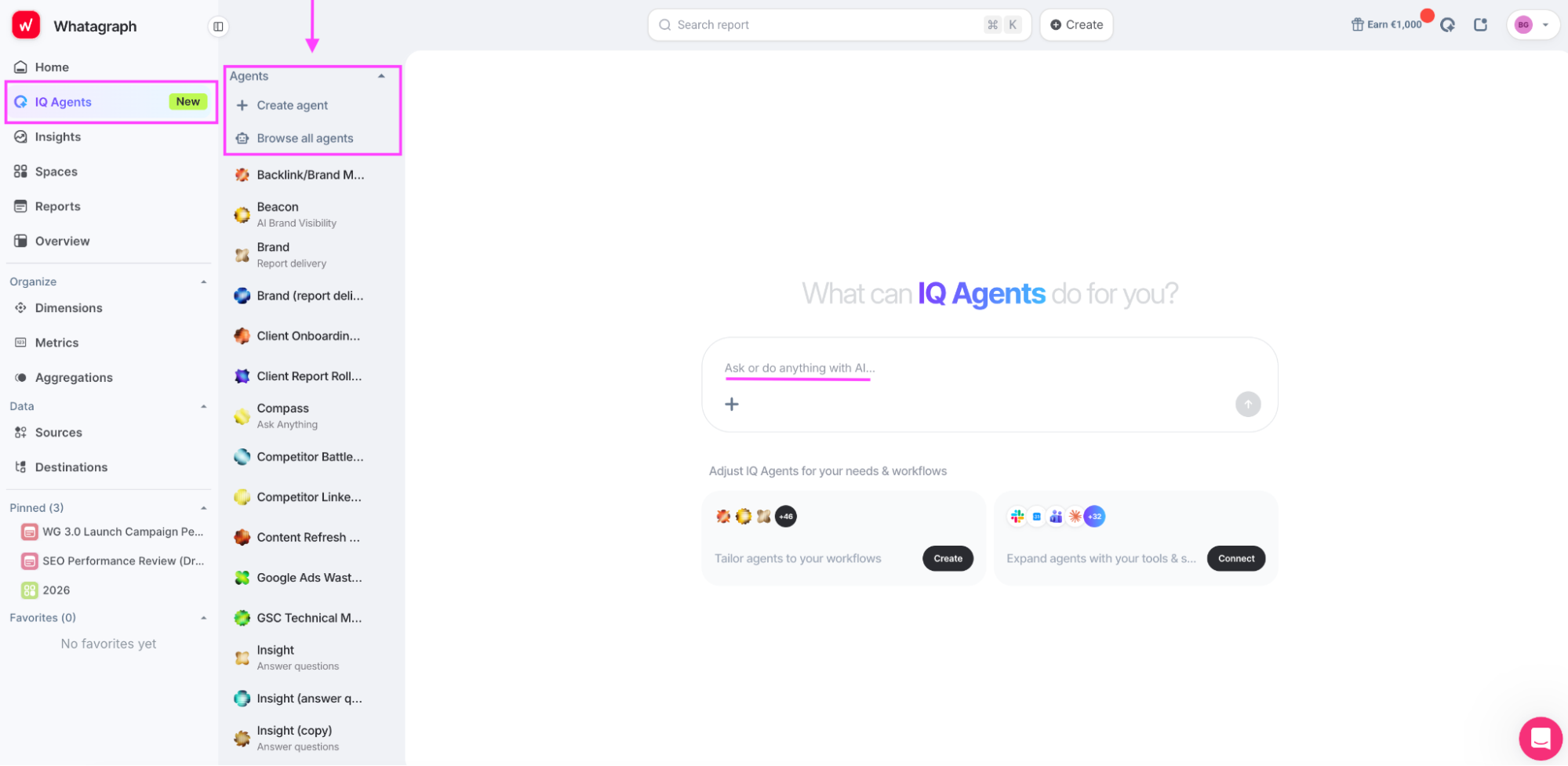
1. Open IQ Agents and choose your starting point
Select IQ Agents in the left-hand menu. Choose Create agent to build your own, or Browse all agents to explore the agents available to your team.
2. Make your own copy of the agent
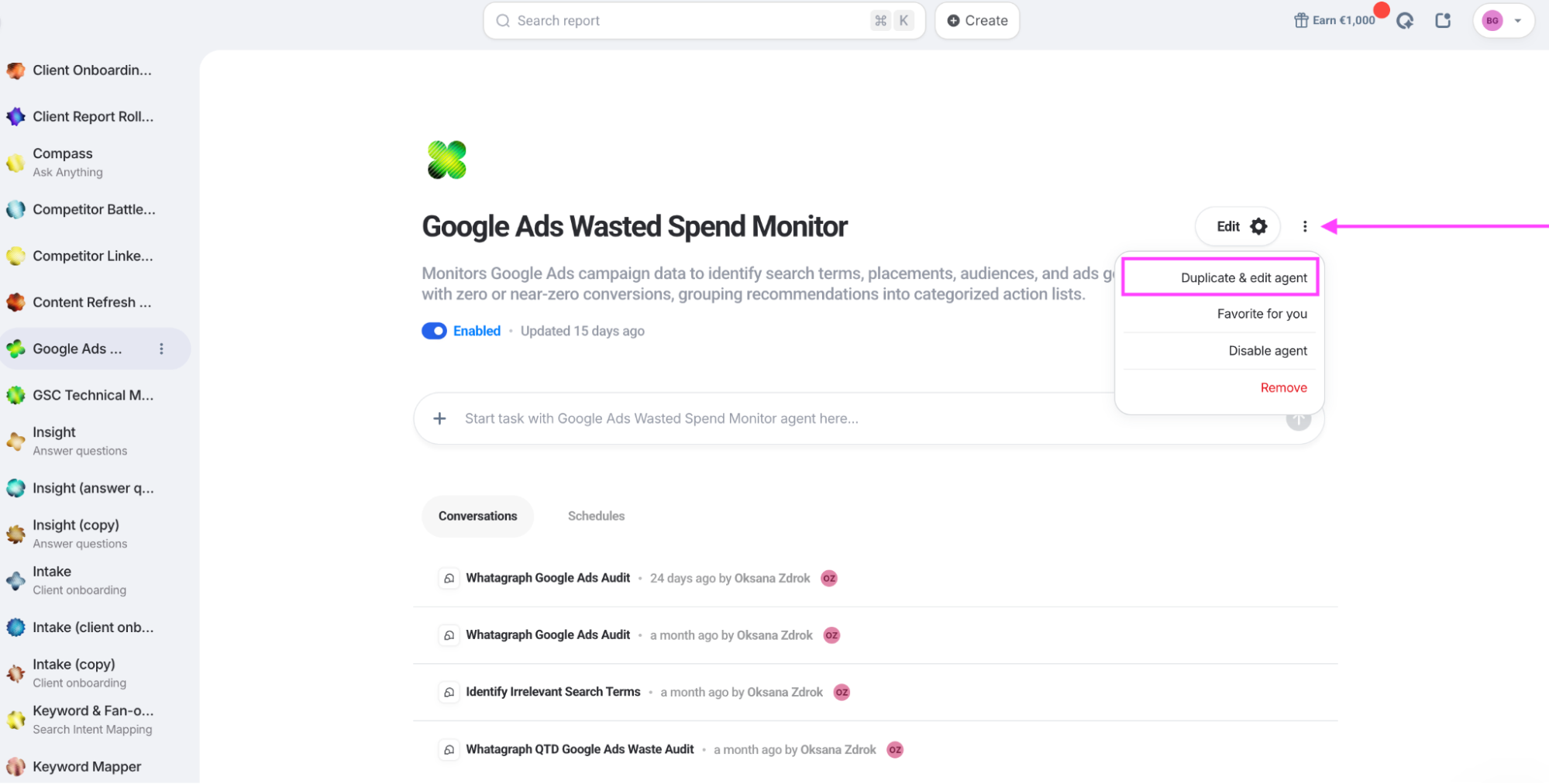
We’re demonstrating with an agent from our own workspace. If your team has a similar monitor, duplicate it. Otherwise, choose Create agent and use the pacing instructions below.
Open the agent you want to adapt. Click the three-dot menu beside Edit, then select Duplicate & edit agent.
You can now customize the copy for your clients while your teammate’s original keeps its settings. Borrow the setup.
3. Customize the copy for your clients
Start with the job you’d give a colleague. In Agent creator mode, use the chat on the left to describe the job. Include the accounts to check, the reporting period, and the conditions that deserve attention. Specify what you want back, too, like a list of flagged campaigns, a report, or both.
Oksana asked for a monitor that finds Google Ads activity spending money with few or no conversions, then groups the findings into recommendations.
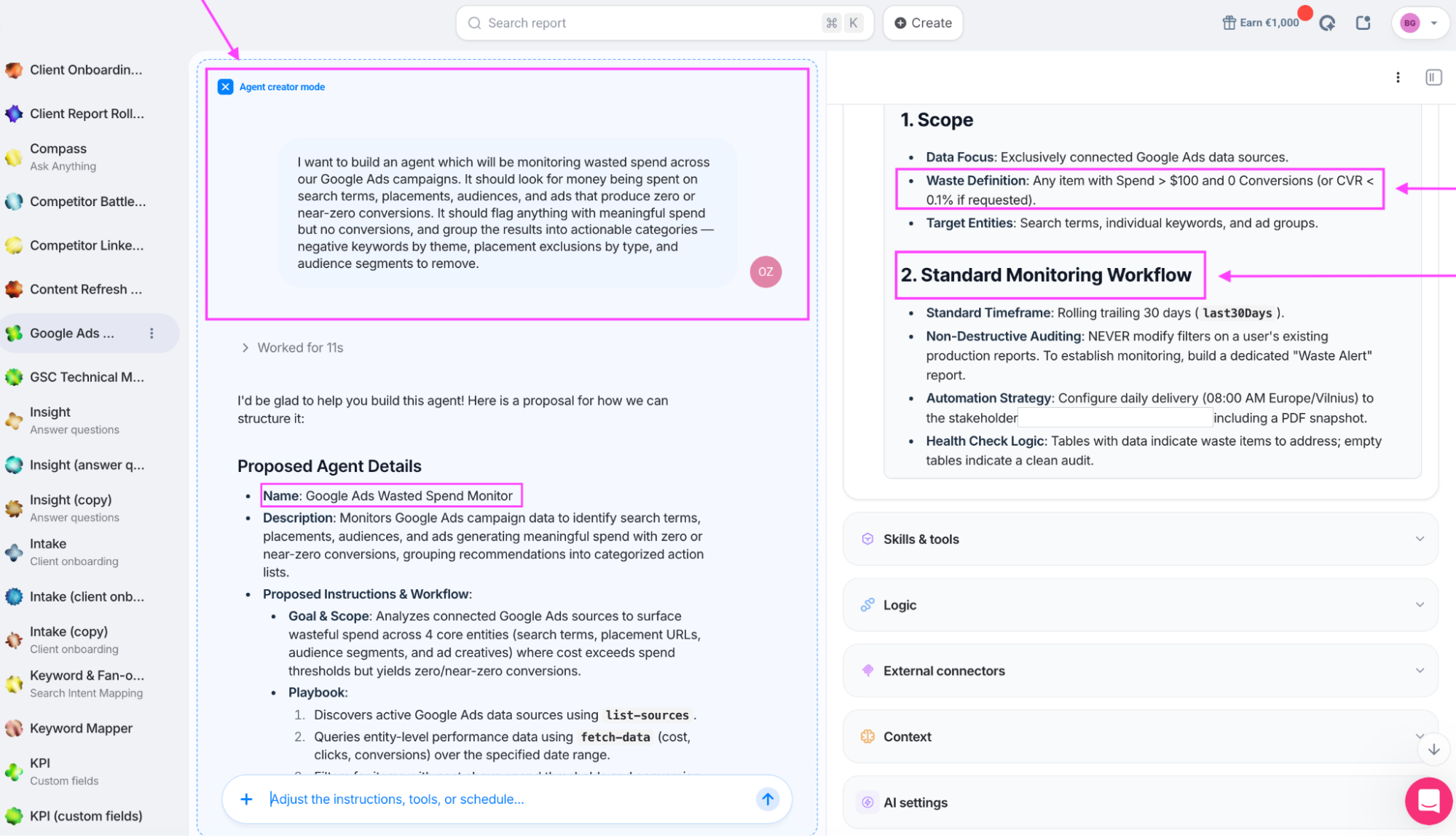
IQ Agents turns that request into a proposed name, description, and workflow. You can see the request on the left and the resulting instructions on the right.
Be explicit about the accounts, budget source, and checks you need. For a pacing agent, you could write:
Rename this agent “[Client name] Budget Monitor.” Adapt it to check [account IDs] against the approved budgets in [connected budget sheet]. Use [reporting period] and [pacing calculation].
Flag overspending and underspending using [agreed thresholds]. Show the figures behind each flag. Report missing budgets or unavailable data separately, and return “none” only when all checks succeed with no exceptions.
Replace the existing delivery recipient with [your email]. Do not change campaign settings or budgets.
Remember to replace the bracketed details with your own, then review the updated Instructions on the right. Check the inherited settings, too: Oksana’s reporting window and delivery time came with the copy. They don’t have to stay.
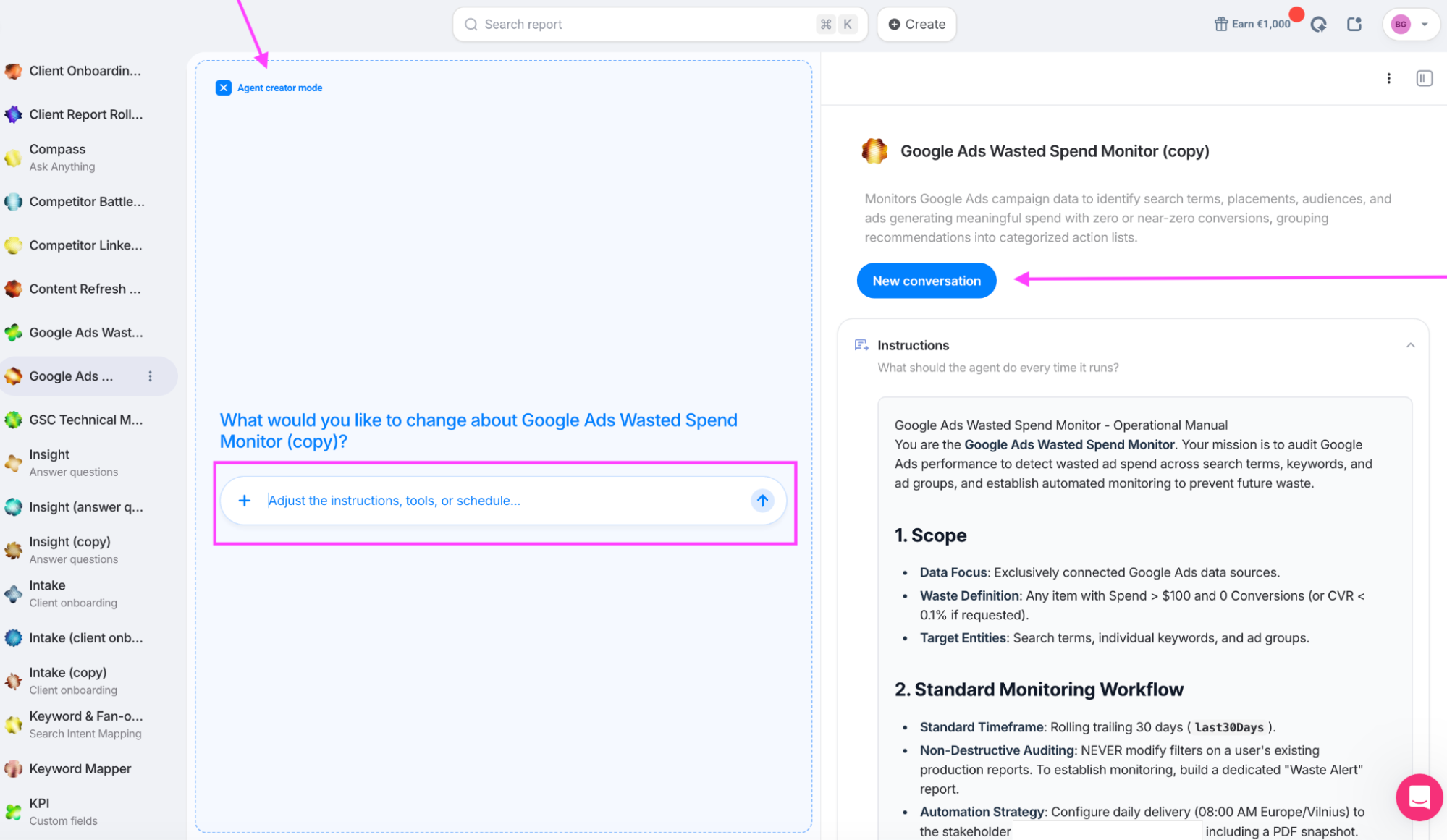
Agent creator mode is where you change the setup. New conversation is where you ask the configured agent to carry out a task. Finish reviewing the setup before starting that first check.
4. Give the agent the tools and context it needs
First, open Skills & tools. Expand the relevant categories and review the individual tools.
In the image below, see how Monitoring & KPIs includes tools for reading saved Overviews and Goals. Enable the data-reading tools your checks require, plus Report building if you want the agent to create a report.
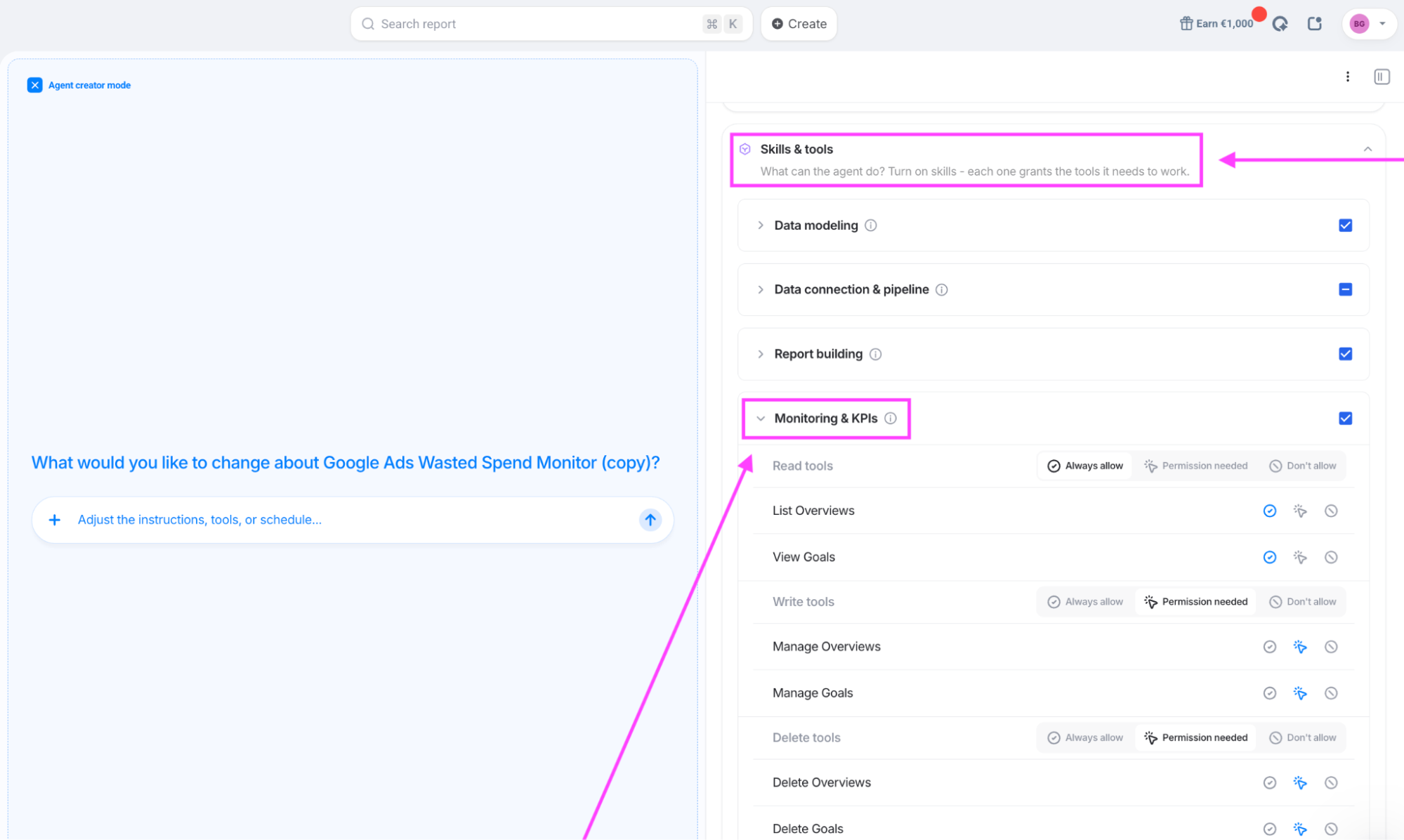
For scheduled checks, set the required read tools to Always allow. Keep changes to existing goals and Overviews on Permission needed, and disable deletion tools if the job doesn’t require them.
Next, open External connectors. Check Added by team before creating another connection. If a teammate has already shared the connection you need, enable it for your agent.
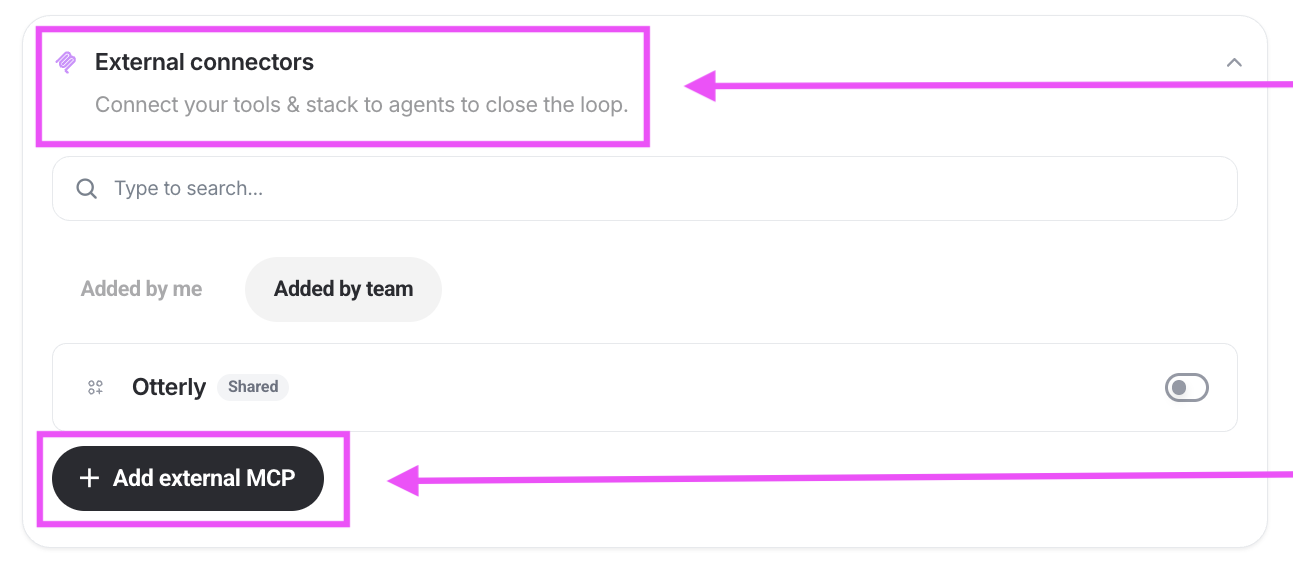
For another supported tool, select Add external MCP and follow its connection setup. Check that the agent can read the specific budget file or records named in your instructions.
Pro tip: Do you already use Claude or another AI assistant? Whatagraph MCP works in the other direction: it lets you query your Whatagraph marketing data from a compatible assistant, using the metric definitions and blends you’ve already set up.
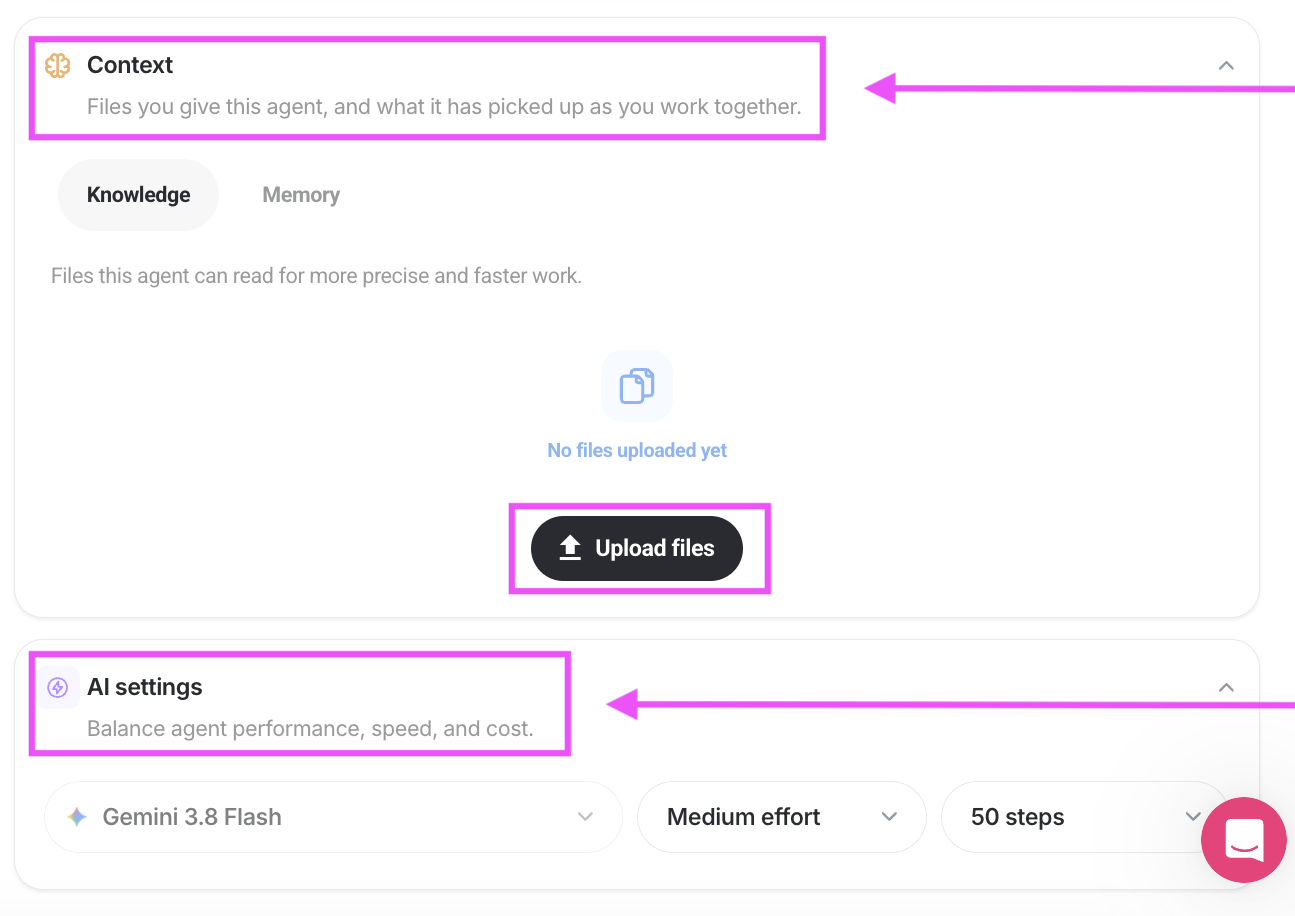
Then, add the client context. Go to Context > Knowledge > Upload files. Add documents explaining campaign naming conventions, spending restrictions, planned promotions, or how the client defines a conversion.
Below this, AI settings let you choose the effort level and step limit; review those alongside the first test run.
5. Run the agent and turn its findings into a report
Select New conversation, then paste the prompt below. Replace the bracketed details with your accounts, budget source, and reporting period before sending.
Check [client/account IDs] against [approved budget source] for [reporting period], using the pacing rules in your instructions.
Create a separate report showing spend to date, approved budget, projected spend, and any overspending or underspending flags. Identify missing data separately. Leave existing reports unchanged.
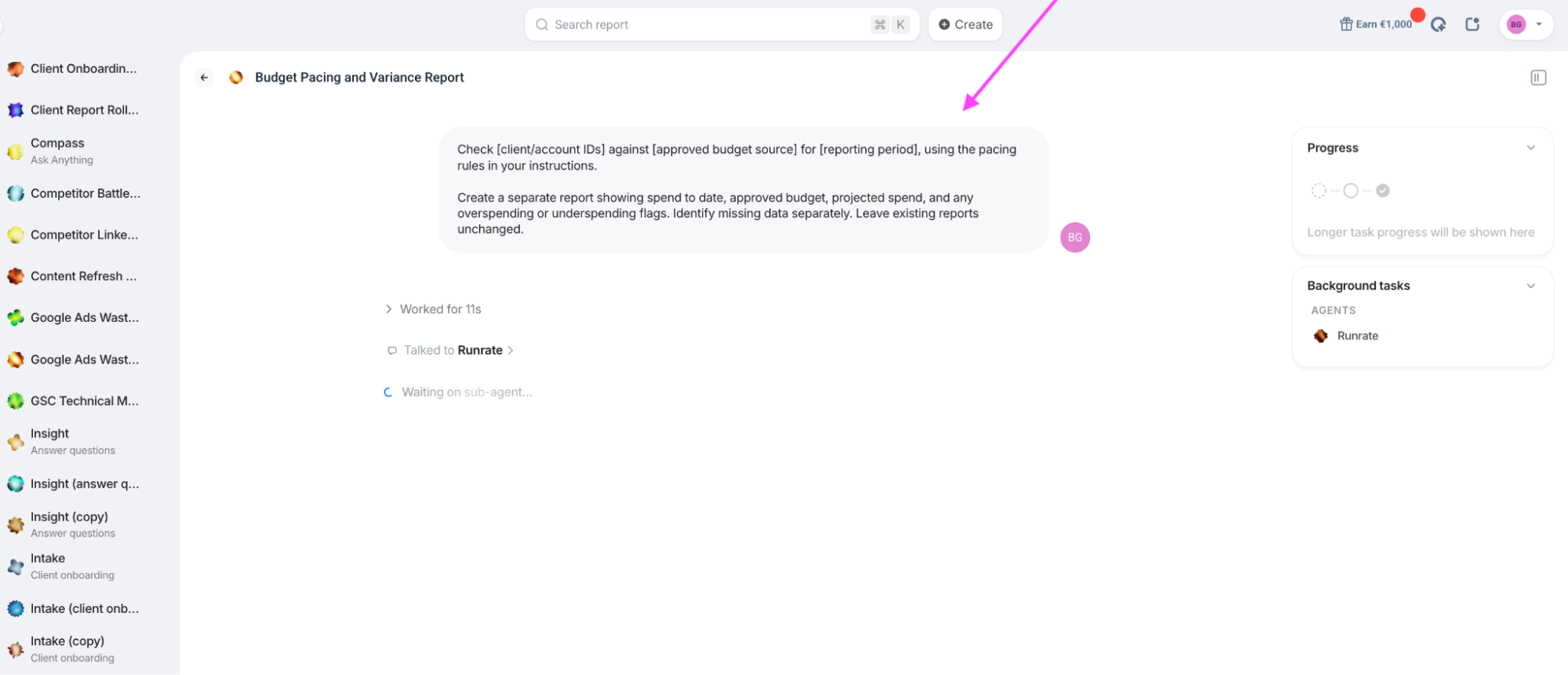
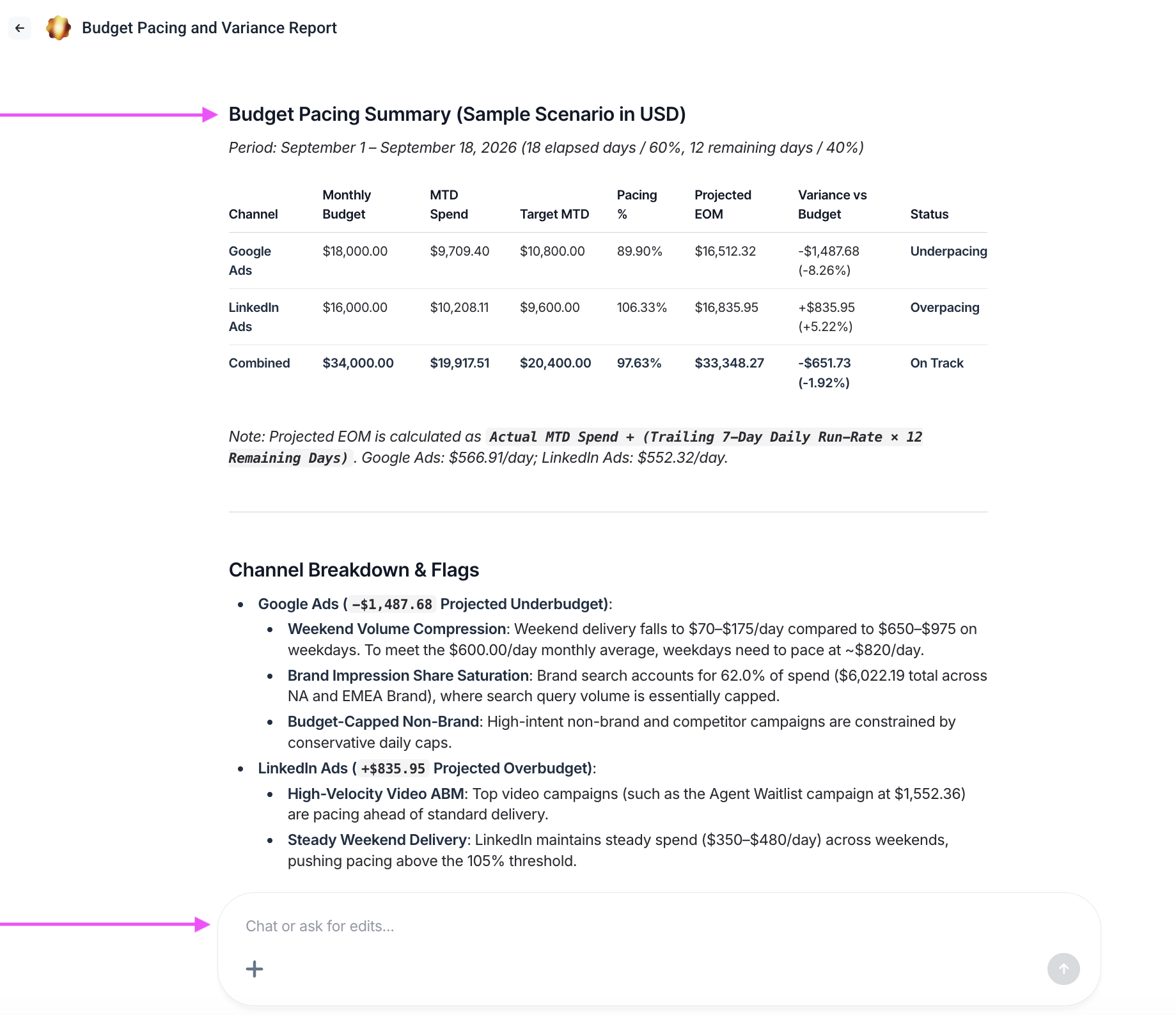
When the report is ready, compare its figures with your approved budget record and spend data. Check the dates and account coverage, too.
The sample output below, for example, compares each channel’s spend with its budget, projects month-end spending, and flags deviations:
6. Put the check on a schedule
In the agent’s editing settings, open Logic > Schedules. Enter the task in Prompt, including what to flag and what to return when everything is clear.
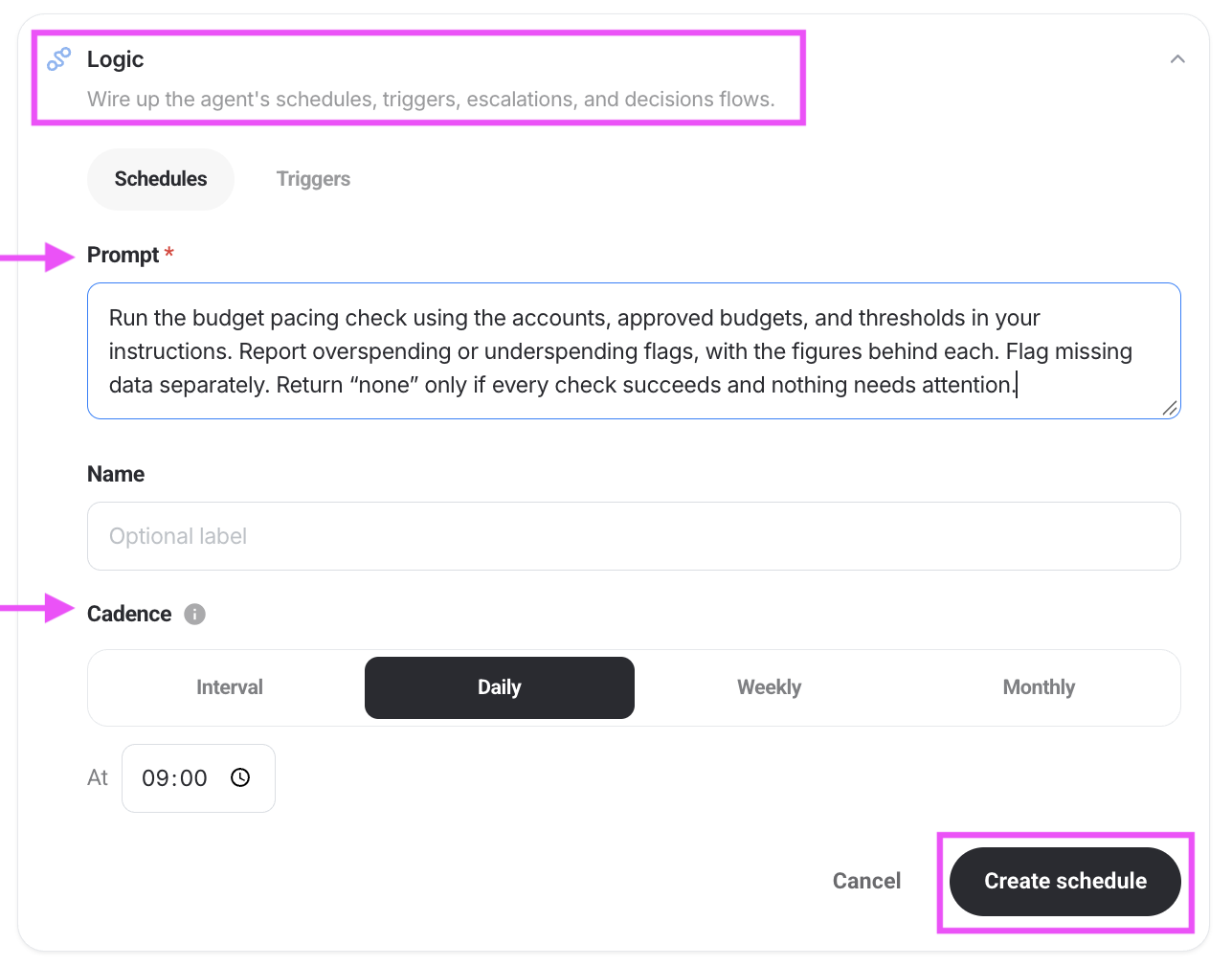
Choose your Cadence and time, then click Create schedule. Here, we’ve selected Daily at 09:00; confirm the time zone used by your schedule.
If you want findings delivered by email or another connected tool, specify the destination in the agent’s instructions and test delivery, too.
How do real agencies use IQ Agents?
These agencies put IQ Agents to work with what they had. We’ve kept their names out of it. You may recognize the headaches anyway:
- A Swedish agency needed to compare spend by target group with an annual budget: But surprise, surprise, those groups existed only in Meta campaign names. No separate tags. The agent read the names, identified the segments, and returned spend against the budget for each group. Plus, the whole exchange happened in Swedish!
- A US agency wanted a spend-cap check with a specific monitoring window: Run daily from the 1st through the 18th, and report “none” when everything was clear. They refined those instructions live.
- Another agency built a check for unusual spending across their client accounts during a call: On their first run, they caught a back-to-school spike. While a spike isn’t automatically a mistake, it gives the account manager something specific to investigate.
- One agency recorded intended stop dates in Meta ad names: An agent built in about seven minutes read those dates and found ads still spending a week after they were supposed to stop. That last check found money leaving the account after the work was meant to be finished.
Step 5: Review flagged campaigns and approve budget changes
The agencies in our research independently arrived at the same arrangement: the AI agent for marketing flags the issue; a human approves the response. Nobody asked for autonomous spending changes.
There was one agency that requested the approval step before anyone offered it.
Give each finding an owner who can decide what happens next:
- Your campaign is heading over budget: Decide whether to reduce delivery, pause activity, or seek approval for additional spend.
- Your campaign is underspending: Establish what is limiting delivery before increasing its budget. A restrictive setting and a rejected ad need a different response.
- Your ads have passed their intended stop date: Confirm whether an extension was approved. If it wasn’t, have the account owner pause them.
A system’s controls, the connector’s capabilities, and your account permissions determine what an agent can do. The Google Ads API supports campaign changes, but Google’s current official MCP server is read-only.
Check that the connection supports the action before assigning it to the agent. For this workflow, keep approval between the recommendation and the spending change.
That applies to platform suggestions, too. A marketing agency told us that native AI optimizations were enabled by default when they wanted campaigns configured according to their standards.
When reviewing changes, document which settings the client has approved. The goal of optimizing ad spend should still be to pursue the client's objectives.
Finally, record what changed, who approved it, and why, with an effective date and a follow-up date.
Be deliberate about leaving things alone.
The reviewer next month should be able to distinguish between an approved launch push and an overspend that wasn’t caught.
What are the best ad spend tracking tools for digital marketing agencies?
There’s a difference between software that supports Google Ads and software that supports the way your agency works with Google Ads. Multiply that distinction across your client accounts, and you have a few things to check before subscribing.
We’ve grouped the options by what they offer. Whatagraph, our tool, is among them; consider that our declaration of interest. But whether or not it belongs on your shortlist is completely up to you.
Native platform tools: For when you want to start with what you already have
For one advertiser running on one or two channels, the tools inside the ad accounts may be enough. These are also where you’ll check the platform’s own spend figures when another report disagrees.
Who’s it right for? Small accounts with straightforward channel coverage. If the native tools answer your spending questions, save yourself a software purchase.
- Your Google Ads account includes budget reports for pacing, Performance Planner for forecasting, and shared budgets for allocating money across eligible campaigns: But check eligibility. Performance Planner stopped supporting Display and Video campaigns on March 9, 2026, and shared budgets exclude Performance Max.
- Your Google Ads Scripts setup can add custom checks and campaign automation using JavaScript, including across multiple accounts: Remember, though, someone needs to maintain the code. Free software has yet to make that person’s time free; scripts also have execution limits, generally 30 minutes per run.
- Your Meta Ads Manager account provides spend and delivery views for Meta campaigns: This can cover a small advertiser’s needs within that platform; a combined Google-and-Meta budget still needs reconciling elsewhere.
Pro tip: If you’d rather query Meta spend in Claude, our Facebook Ads MCP guide covers connecting through Meta’s own connector or Whatagraph.
Client reporting platforms: For when you can put the spend somewhere clients can read it
These platforms below consolidate connected channels into reports and dashboards you can share.
Who’s it right for? The agencies and multi-brand teams who need consolidated spend figures and recurring reports for clients or stakeholders.
- The AgencyAnalytics option: You get automated client reports with white-label branding, client portals, and goal-based budget tracking.
- The NinjaCat option: NinjaCat is built for larger operations managing many accounts, with reporting and budget management that includes custom budget cycles and automated daily-budget adjustments.
- The Whatagraph option: Data Hub lets you combine accounts, define custom spend metrics, and convert currencies before those figures reach client reports. A perfect fit when preparing consistent data is as much work as presenting it. The IQ Agents I showed you above are currently in early access; confirm availability when evaluating the platform.
PPC management suites: For when you want to keep pacing beside campaign optimization
For teams already knee-deep in bids and campaign performance settings, these tools put budget checks in the same workspace.
Who’s it right for? Those who run a lot of search campaigns and want budget-pacing software alongside their daily work.
- The Optmyzr option: You get spend projections based on historical performance, seasonality, and recent budget changes, with configurable automation to pause campaigns at monthly limits. Check the product you’re buying, though; its dedicated Social offering includes Meta and LinkedIn budget alerts and pause rules.
- The Adalysis option: You get support for Google and Microsoft Ads, with account, campaign, and budget-group tracking, spend forecasts, and automated daily-budget adjustments.
- The Opteo option: A Google Ads-focused suite combining optimization recommendations with budget alerts and Slack notifications. In our opinion, a narrower channel remit, which is perfectly reasonable if that’s where your clients spend.
- The TrueClicks option: You get budget-pacing checks with alerts for broken conversion tracking, inaccessible landing pages, and other account problems. Consider it for a second set of checks alongside your existing tools; it also offers fixes within its interface.
Monitoring and rule-based tools: For when you want to fill the gap in your existing setup
If reporting is sorted, you may only need better alerts or rules for recurring budget adjustments. As we say, no need to move house because the doorbell’s broken.
Who’s it right for? The teams adding alerts or specific automations to tools they already use.
- The Hawke AI option: You get client-specific alerts for budget limits and KPI thresholds, delivered through email or Slack. You can set notification frequency for each client; it also offers dashboards and reporting if you need them.
- The Bïrch option: You can set rules for Meta, Google, TikTok, and Snapchat to pause ads or adjust budgets when conditions are met. Checks can run as often as every 15 minutes. Bïrch’s AI-generated suggestions require approval before becoming rules; enabled rules then execute the actions you’ve configured.
Data pipelines: For when you want to bring the spend into your own setup
If your analyst already has a spreadsheet or warehouse model they trust, these products can keep it supplied with data. The calculation can stay yours, but so can the maintenance.
Who’s it right for? The teams with an analyst who wants control over the pacing model and can maintain it as client requirements change.
- The Supermetrics option: You can schedule imports into Google Sheets, with budget-pacing templates you can adapt.
- The Funnel option: Funnel collects and prepares marketing data for destinations including Sheets, BI tools, and warehouses. But check destination access by plan: Google Sheets is available on Starter; BigQuery requires Business or Enterprise.
- The Improvado option: You get centralized marketing data in a warehouse for further analysis. Improvado also offers pacing checks and alerts, so check which capabilities are included in the package.
These are six questions to bring to the demo, and bring your awkward accounts, too:
| Ask the vendor | Ask them to show you |
|---|---|
| Can you read every channel we run? | Your channel list, supported spend fields, refresh frequency, and the workaround for anything missing. |
| Can we define spend once? | The definition from Step 1 flows into reports, exports, and alerts without rebuilding the calculation in each place. |
| Will you remember last month’s budget? | Dated budgets and revisions, including when each change took effect. |
| Can you handle our currencies and time zones? | This includes automatic currency conversion, the exchange-rate policy, and how accounts with different reporting-day boundaries are reconciled. |
| Will an alert come to us? | A test notification in your chosen channel, plus a separate warning when data is missing or a check fails. |
| Can an account manager change a threshold? | Someone with that role changing a client’s limit themselves. |
Whatagraph is ours, so let’s be specific. You define your ad spend once as a Custom Metric in the Data Hub.
The Source Groups gather accounts from the same channel, and Blends bring channels together. The currency conversion happens automatically for you. Then configure IQ Agents to check spend against approved budgets on a schedule and send exceptions through a connected Slack tool.
But if you’re tracking one advertiser across two channels, the native tools above may already do the job. You don’t have to outgrow them on our account.
For anyone still checking dozens of accounts before breakfast, request early access to IQ Agents.
Published on Oct 05 2026
WRITTEN BY
Brinda GulatiBrinda Gulati is a fractional content marketer and freelance writer who specializes in data-driven storytelling and writing easy-to-understand, informative content for humans. She has two degrees in Creative Writing from the University of Warwick, and believes that above all, stories are a deeply human endeavor. She has two dogs, knows thrifting spots, and loves afternoon naps.